
Create projects without project management data
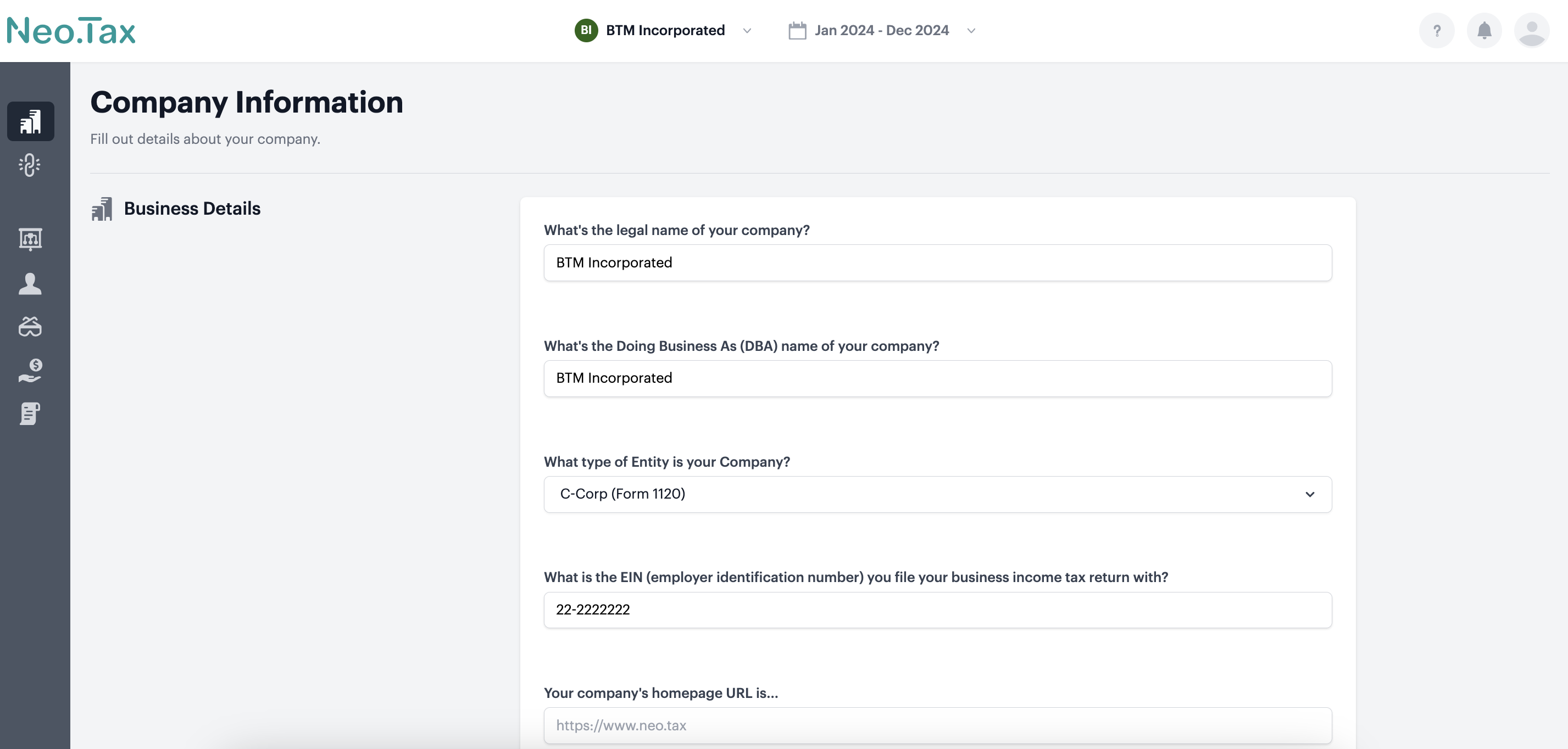
Upon logging into Neo.Tax, you will be directed to the Company Information page.
-
Upon logging into Neo.Tax, you will be directed to the Company Information page. Enter your organization’s information.
-
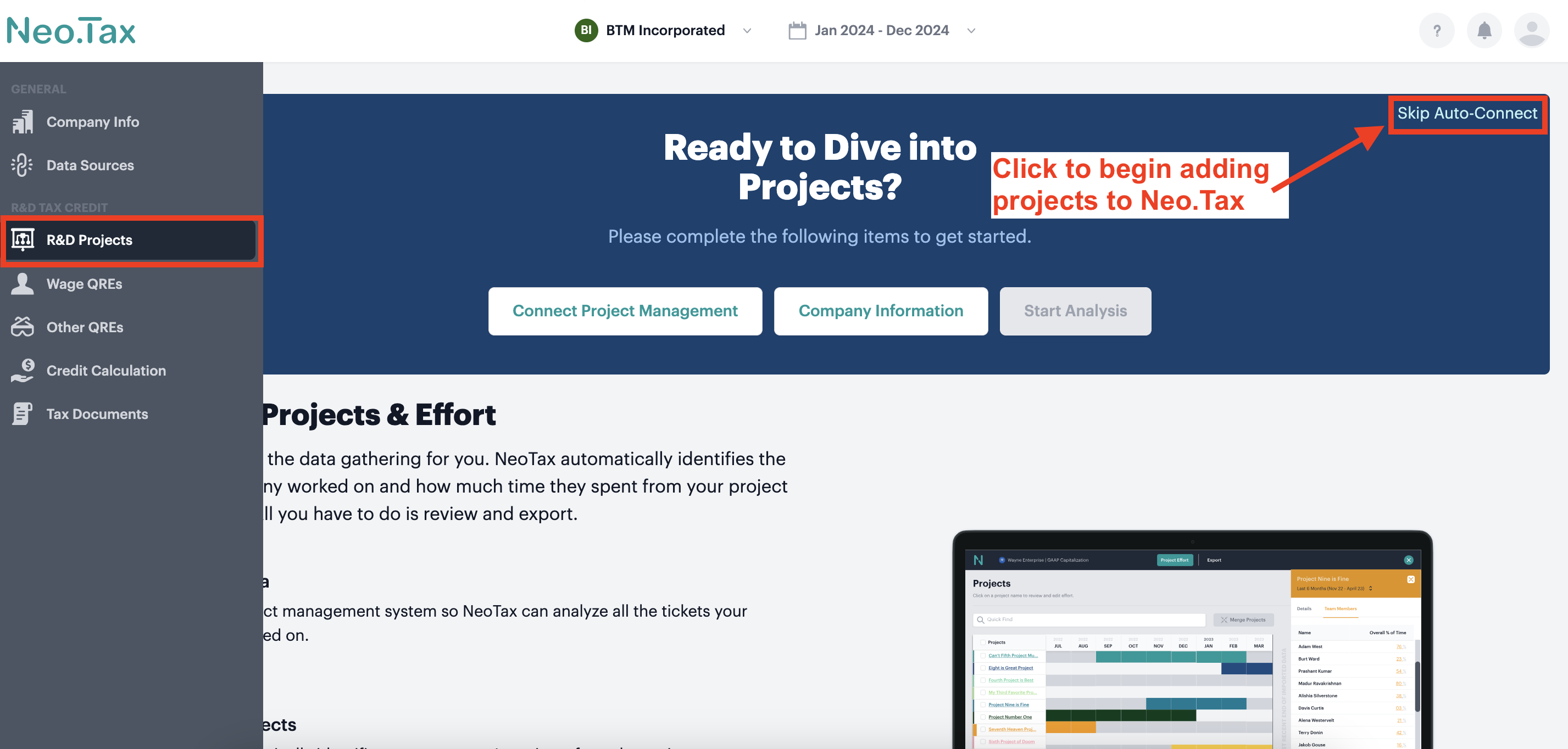
Using the menu on the left-hand side of the screen, navigate to the Projects page. Because a project management system is not being used to generate projects, click on Skip Auto Connect in the upper-right corner of the screen.
-
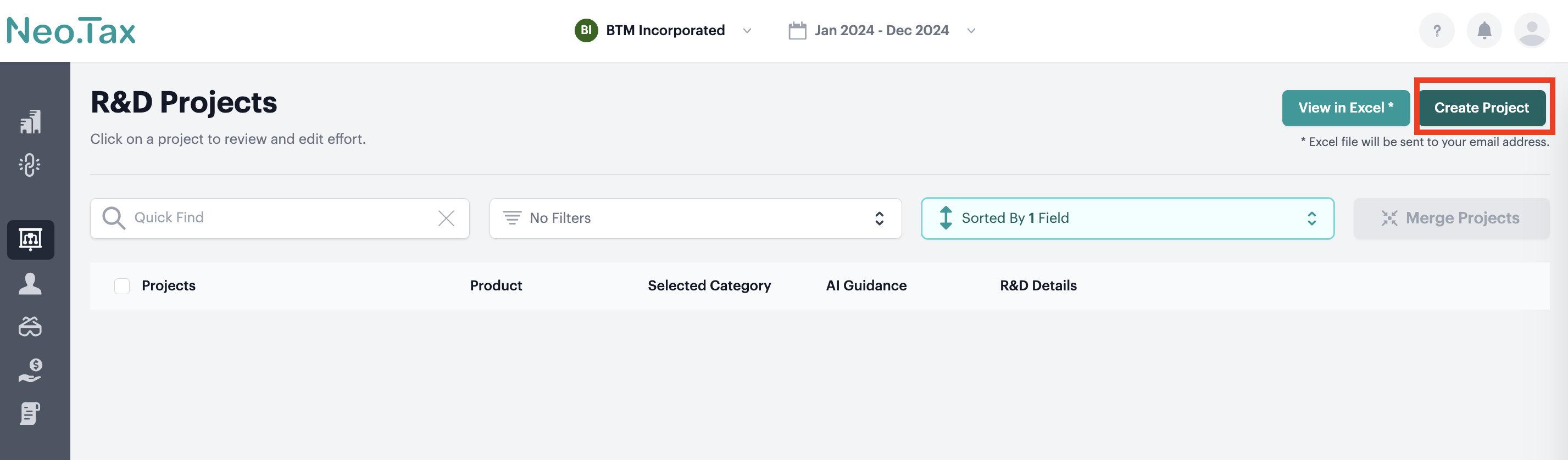
On the subsequent screen, click Create Project in the upper-right corner of the screen to begin adding projects to Neo.Tax.
-
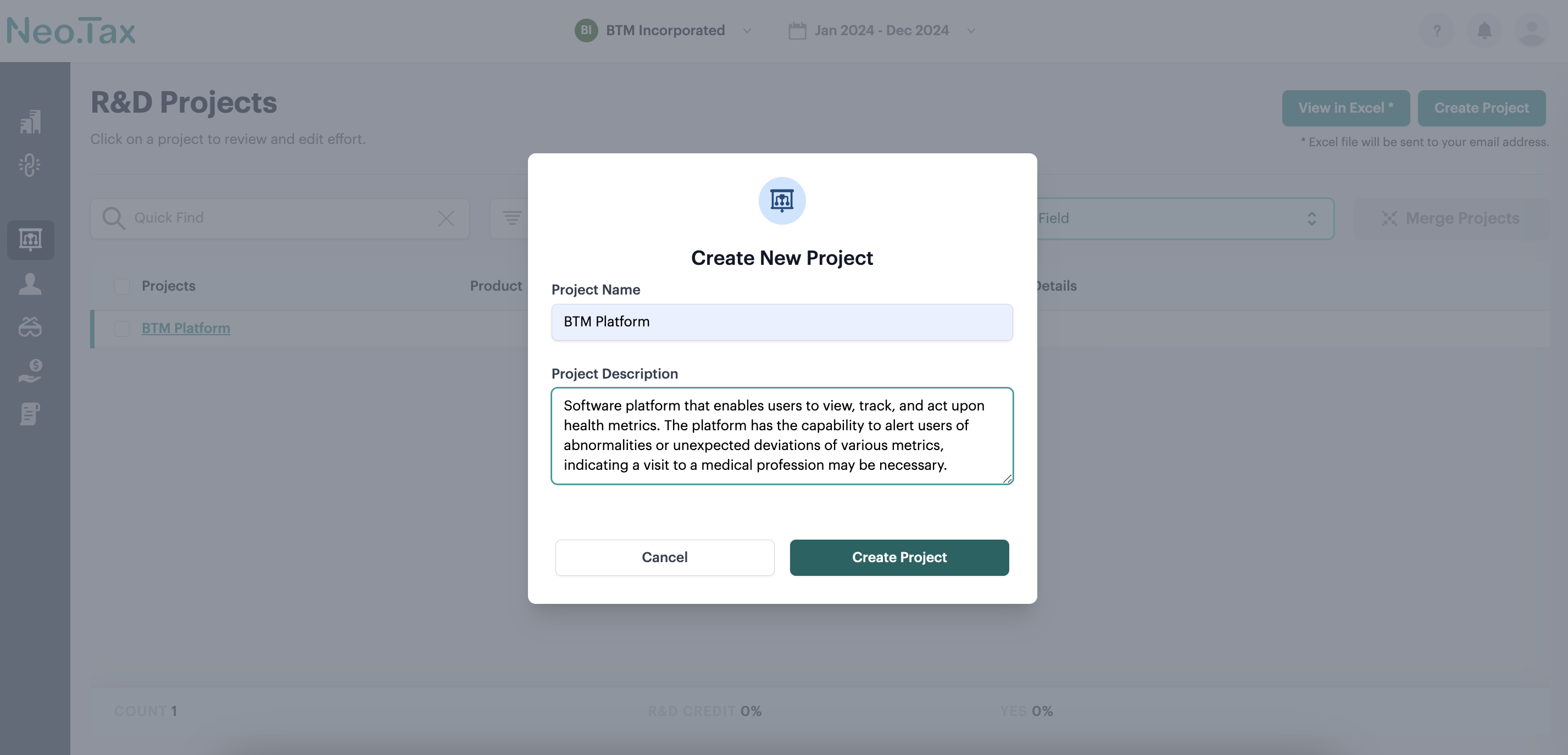
Input the project name and a short description in the Create New Project window and then click Create Project.
-
Click on the project to open the project information menu on the right-hand side of the screen.
-
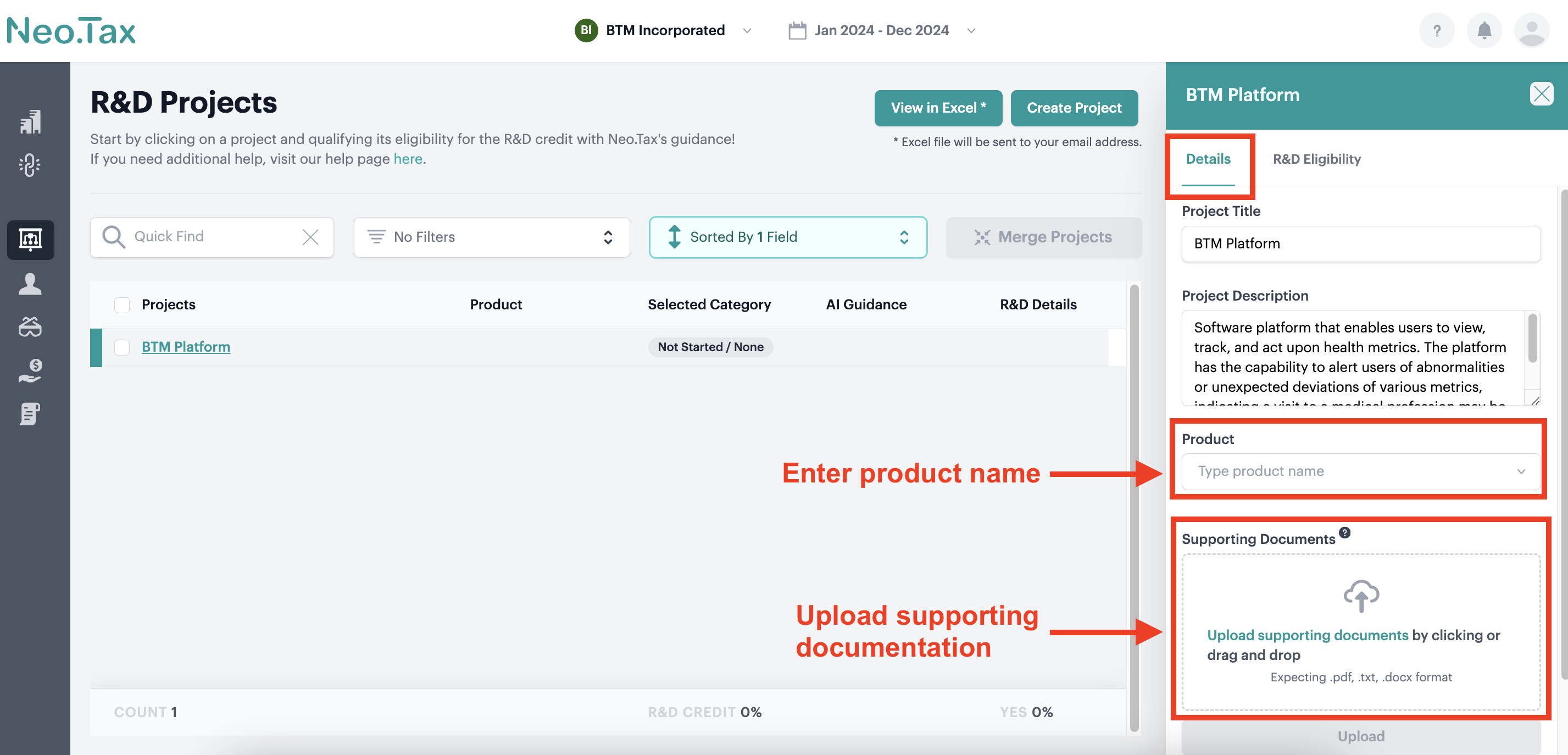
On the Details tab, there are optional next steps that can be taken to expedite the processes required to input project information:
-
Optional: enter the product name in the Product text box
-
Optional: upload supporting documentation to the Supporting Documentation menu to automatically generate the project description, the technical uncertainties encountered during the development process, and the processes of experimentation utilized to overcome the technical uncertainties. (more information on this step can be found here)
-
-
-
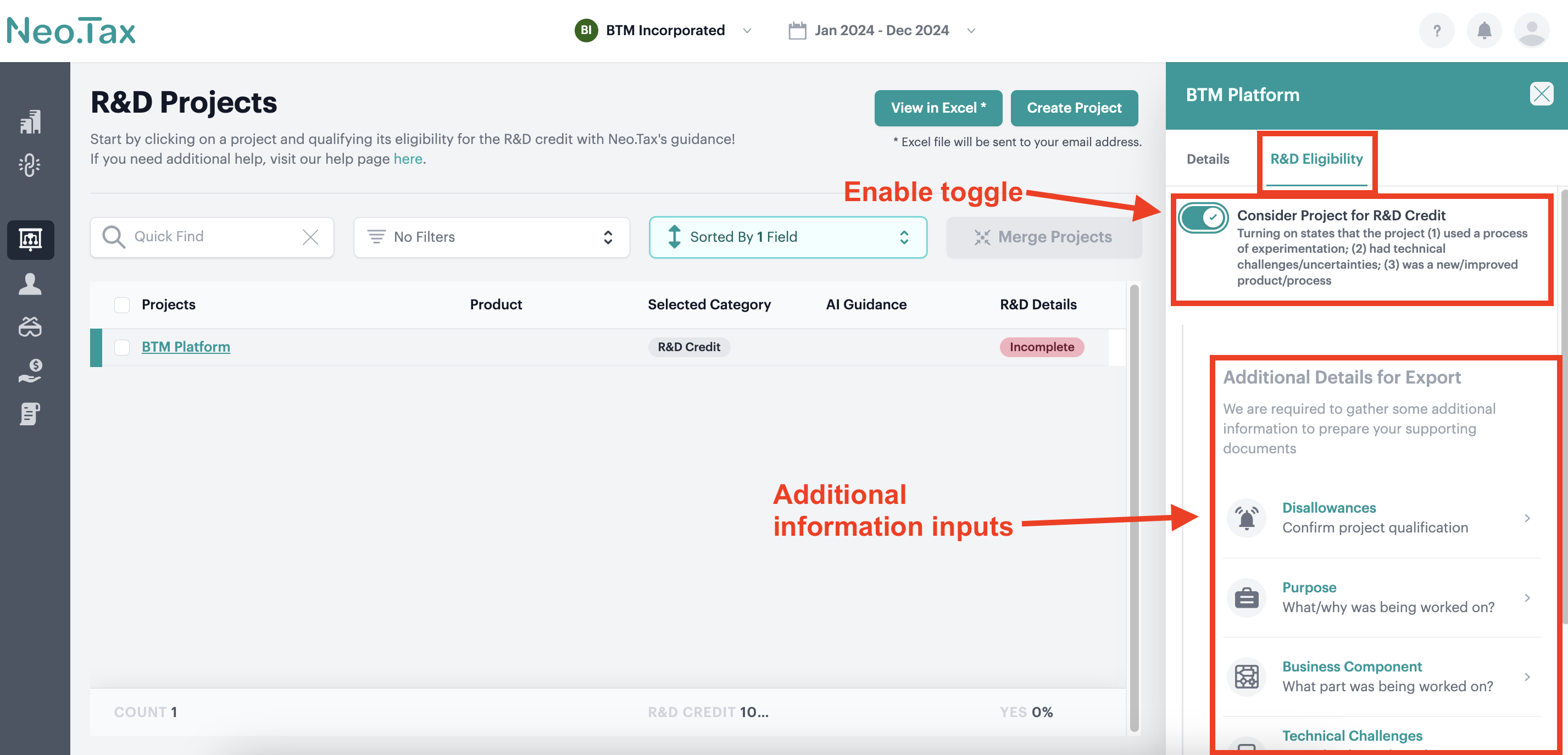
On the R&D Eligibility tab of the project information menu, enable the Consider Project for R&D Eligibility toggle to reveal the additional information inputs required to evaluate the project’s qualification for the R&D tax credit.
-
Complete the Disallowances, Purpose, Business Component, Technical Uncertainties, and Process of Experimentation inputs with the applicable project information.
- Note: if supporting documentation was uploaded as outlined in step 5(a)(ii), the Technical Uncertainties and Process of Experimentation inputs will be complete, but can be edited as necessary.
-
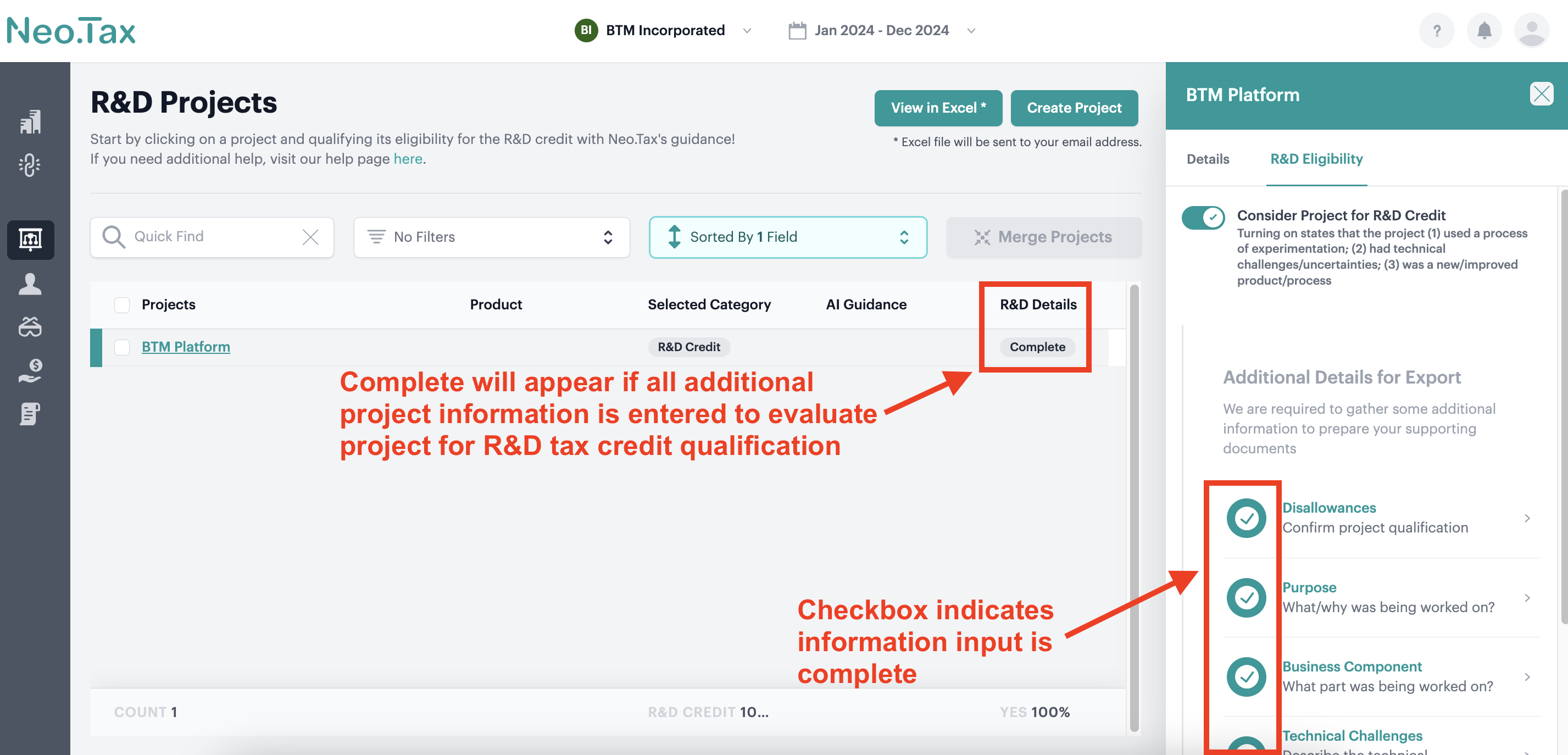
After all of the additional project information is input, checkboxes will appear next to each item and Complete will appear in the R&D Details column for the project.
-
Complete steps 3 through 9 for each additional projects that may be qualified for the R&D tax credit.