
Connect Workday for HR data
If you want to connect Workday to use for ASC 350-40 to retrieve employee title, ID, and other non pay data only, follow the below instructions.
NeoTax uses Finch Connect to securely connect to and retrieve data from Workday.
Before you start
Please ensure that you have Administrator privileges in Workday before continuing with the instructions below.
Instructions
Step 1. Create an Integration System User in Workday
-
Log in to your Workday portal.
-
In the search bar at the top of the page, search for “Create Integration System User”.
-
Select the Create Integration System User task.
-
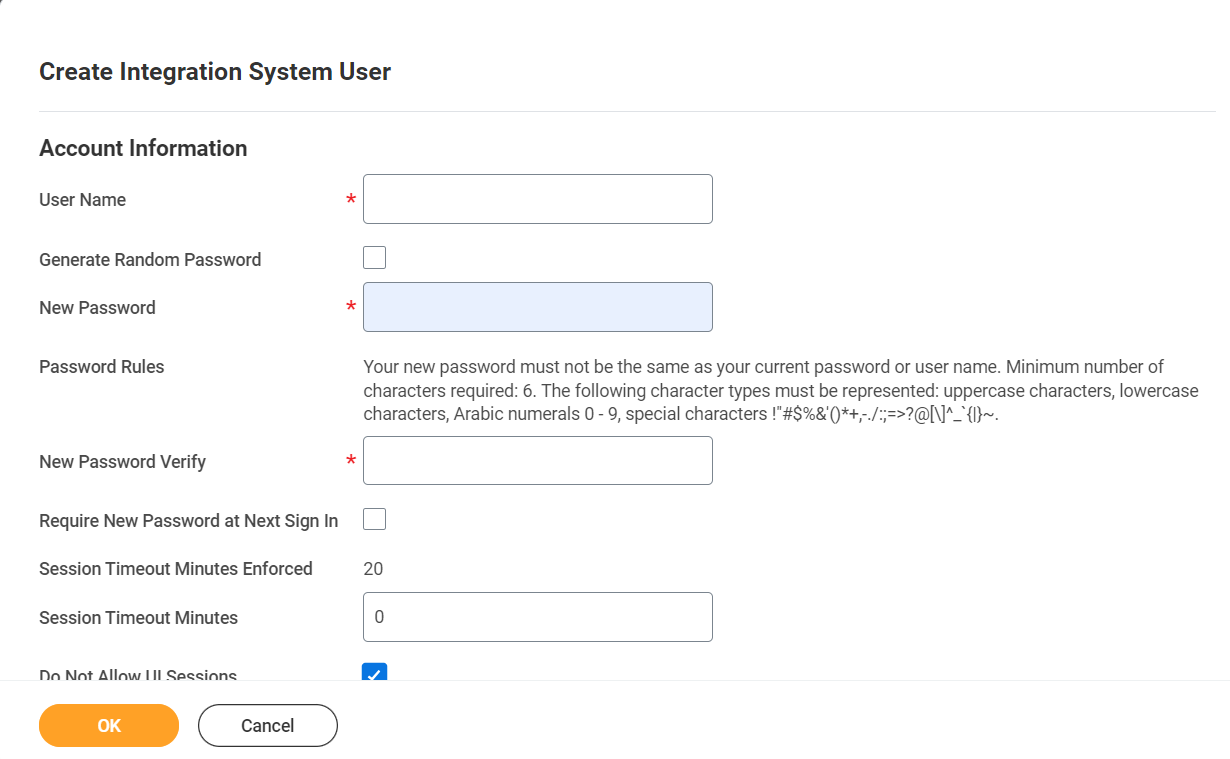
Enter a User Name and Password of your choosing for the new Integration System User. Make sure the password does not contain any of the following characters: “&”, “”, “>”
-
Save this login information as you’ll need it later.
-
Please ensure that Require New Password at Next Sign In is not checked.
-
Set Session Timeout Minutes to 0.
-
Please ensure that Do Not Allow UI Sessions is checked.
-
Click OK to create the Integration System User.
Step 2. Configure a Security Group
-
In the search bar at the top of the page, search for “Create Security Group”.
-
Select the Create Security Group task.
-
On the Create Security Group page, from the Type of Tenanted Security Group dropdown, select Integration System Security Group (Unconstrained).
-
Enter a name for the security group in the Name field.
-
Click OK to create the security group.
-
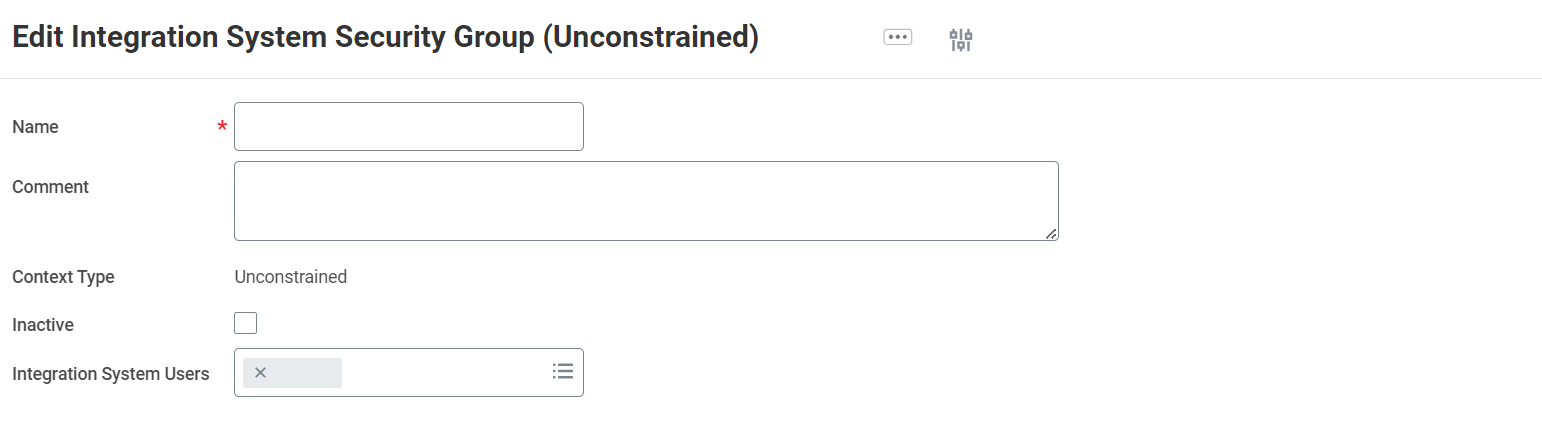
On the Edit Integration System Security Group (Unconstrained) page enter the name of the Integration System User you created in the Integration System Users field
-
Click OK to assign the Integration System User to the security group.
Step 3. Configure the Domain Security Policy Permissions
- In the search bar at the top of the page, search for “Maintain Permissions for Security Group”.
- Select the Maintain Permissions for Security Group task.
- Make sure the Operation is Maintain, and the Source Security Group is the security group you created.
- Configure the Domain Security Policy Permissions based on the requirements of the Workday integration you are connecting and the information below.
Required Domain Security Policies
The following Domain Security Policies are the minimum set that are required in order to connect:
NOTE - View Only will not work. You must select Get Only
| View/ Modify Access | Domain Security Policy | Notes |
| Get Only | Set Up: Company General | Required for authentication |
| Get Only | Worker Data: Public Worker Reports | Required to fetch basic employee data that is typically made publicly accessible by other employees |
| Get Only | Worker Data: Current Staffing Information | Required to fetch basic employee job role data |
Required Domain Security Policies
The following Domain Security Policies enable NeoTax to retrieve additional data.
NOTE - View Only will not work. You must select Get Only
| View/Modify Access | Domain Security Policy | Notes |
| Get Only | Person Data: ID Information | Enables fetching employee social security numbers (SSN) on the /individual endpoint |
| Get Only | Person Data: Date of Birth | Enables fetching employee date of birth (DOB) on the /individual endpoint |
| Get Only | Person Data: Gender | Enables fetching employee gender on the /individual endpoint |
| Get Only | Person Data: Ethnicity | Enables fetching employee ethnicity on the /individual endpoint |
| Get Only | Person Data: Work Contact Information | Enables fetching employee work emails and phone numbers |
| Get Only | Person Data: Home Contact Information | Enables fetching employee personal emails and phone numbers |
| Get Only | Integration Build: Get References | Enables fetching readable descriptions for reference IDs used by custom fields. These IDs are related to custom organization types and bonus plan types |
Do NOT enable any Domain Security policies related to pay data.
Step 4. Activate Security Policy Changes
- In the search bar at the top of the page, search for “Activate Pending Security Policy Changes”.
- Select the Activate Pending Security Policy Changes task.
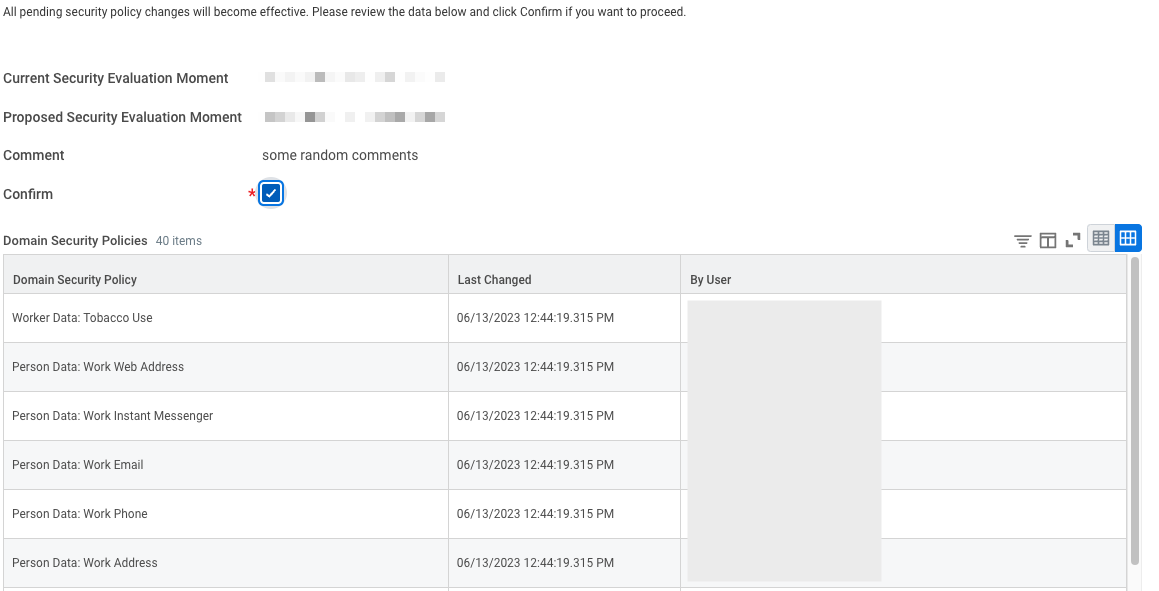
- View the summary of changes waiting to be approved and check the Confirm checkbox
Step 5. Configure Authentication Policy
- In the search bar at the top of the page, search for “Manage Authentication Policies”.
- Select the Manage Authentication Policies report.
- Verify that the Security Group is assigned to a policy that has an Allowed Authentication Type of User Name Password or Any. If this is not the case you must edit the relevant Authentication Policy to add a rule using the steps below:
- Edit the Authentication Policy for the environment you want NeoTax to retrieve data from
- Add a new Authentication Rule for the policy
- Set the Authentication Rule Name to a unique value to identify the rule
- Set the Security Group to the Security Group you created
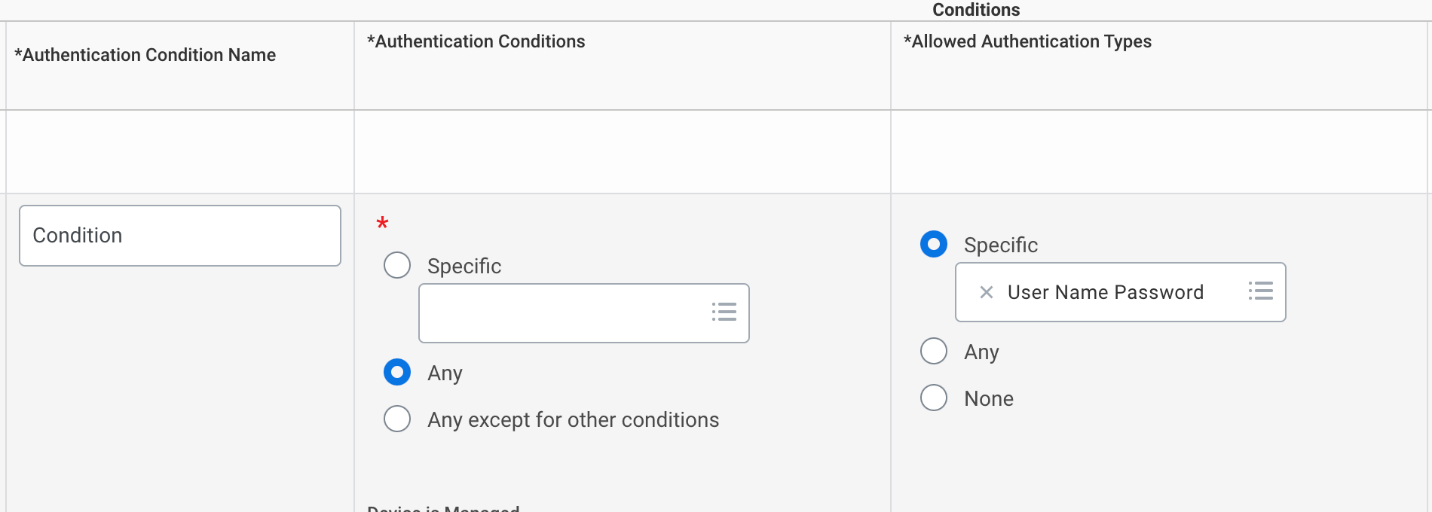
- Set the Authentication Conditions to Any and the Allowed Authentication Types to Specific > User Name Password.


Step 6. Activate Authentication Policy Changes
- In the search bar at the top of the page, search for “Activate Pending Authentication Policy Changes”.
- Select the Activate Pending Authentication Policy Changes task.
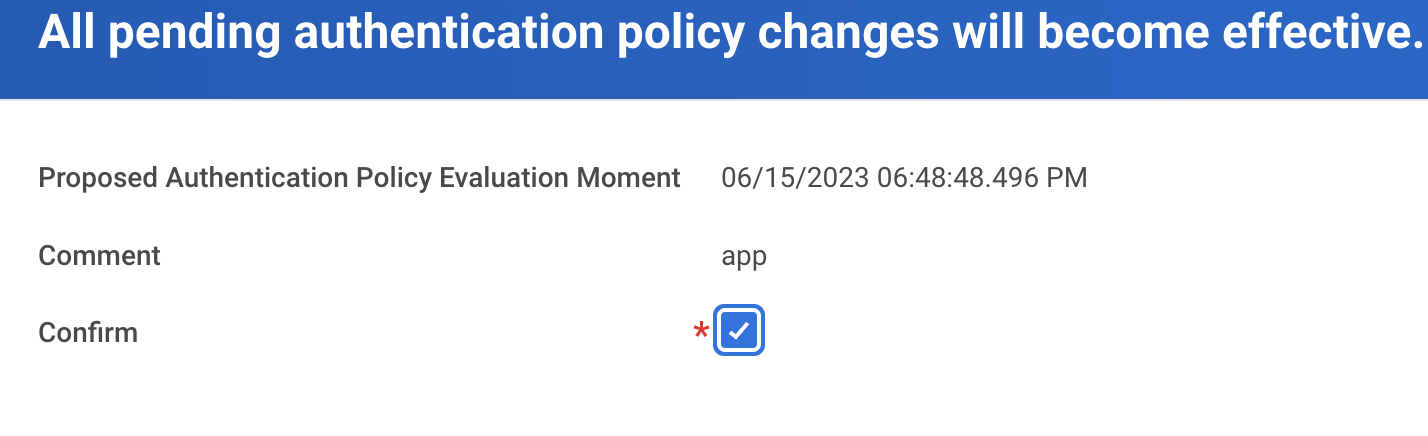
- View the summary of changes waiting to be approved and check the Confirm checkbox
Step 7. Obtain the Web Services Endpoint URL
-
In the search bar at the top of the page, search for “Public Web Services”.
-
Select the Public Web Services report.
-
Find the Human Resources (Public) item in the Web Service column and hover over it so you can click the … menu that appears.
-
In the … menu click Web Service > View WSDL. A new page will open containing the technical specifications for the Workday Human Resources Web Service.
-
Scroll all the way to the bottom of the page and locate the line containing soapbind:address location=. You can also search within the page using Ctrl+F or Cmd+F for the text soapbind:address location=
-
Copy the URL up until /service. Your resulting Web Services Endpoint URL should look something like https://wd5-services1.myworkday.com/ccx

-
Save this URL to provide in NeoTax > Finch Connect.
Step 8. Go to NeoTax and Connect the Token
-
Navigate back to NeoTax > go to R&D > Select Payroll > Workday > Click Connect > Open Workday.
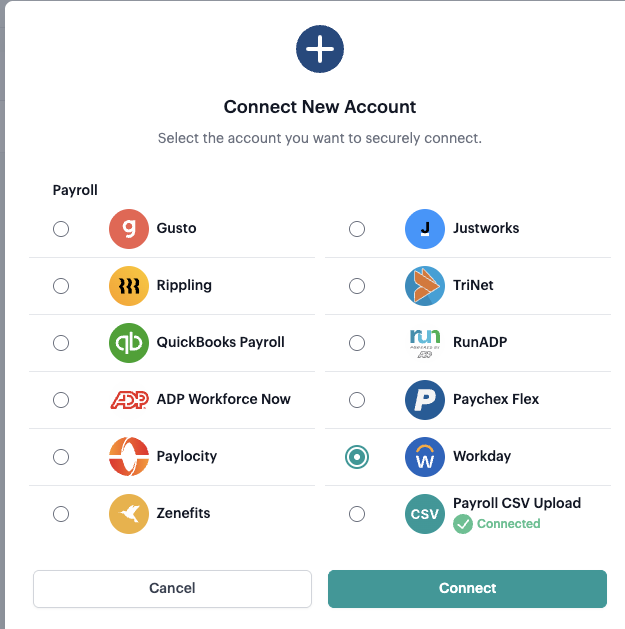
- The instructions will reference pay data. You can ignore that part, since you’ve restricted the token to only have employee data in the above steps.
-
Paste the username and password created in Step 1 into the Username and Password fields.
-
Paste your Workday tenant ID into the Tenant ID field. You can find this value in the URL of your web browser when on the Workday home page:
-
If the URL looks like https://impl.workday.com/somecompany then your tenant ID is somecompany
-
If the URL looks like https://somecompany.workday.com then your tenant ID is somecompany
This value is case-sensitive, make sure the case matches what’s in your URL.
- Paste the Web Services Endpoint URL you copied in Step 7 into the API Base URL field.
- Click Connect.
Step 9. Select a Company to Connect
The modal will ask you to select which company you’d like to connect. This is a list of companies retrieved from your Workday system that employees area is assigned to.
The company you connect will be the only company NeoTax will retrieve data for.