
Edit capitalization allocations
Allocations can be edited individually or in bulk using Excel.
Start by navigating to the ASC 350-40 Cost page.
Select the period you want to review at the top of the page.
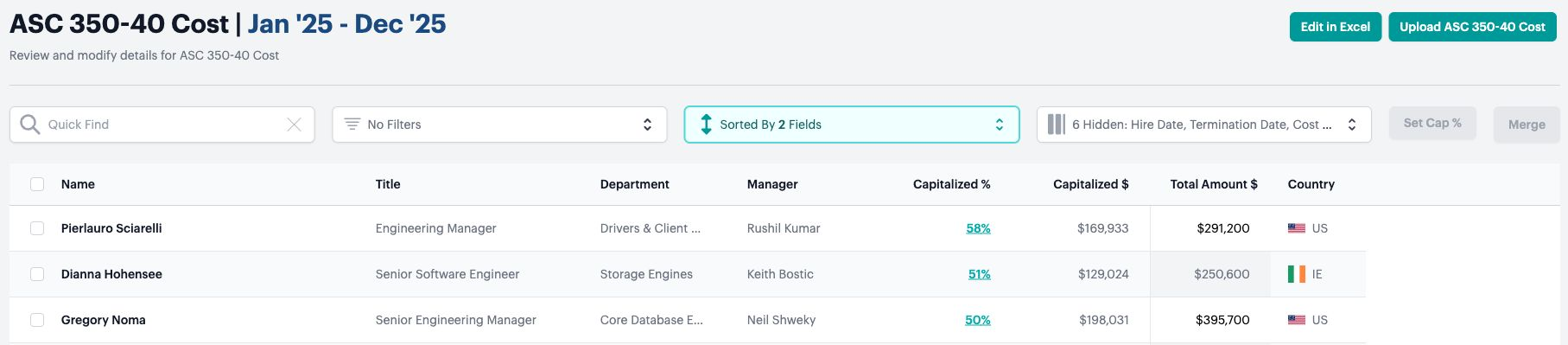
Click a person’s Capitalized % to open their individual allocations.
Editing individual allocations
- On the ASC 350-40 Cost page, find the person whose allocations you want to update. Use Quick Find or filters to narrow the list.
- Click the percentage in their Capitalized % column to open the allocation editor.
- Adjust the project sliders to reflect how the person’s time should be allocated. Use the Quick Find field in the editor if you don’t see the project you need.
- Review Non-Project Time and the project labels. Each project shows whether it is Capitalized, including its capitalization dates, or Not Capitalized.
- Review the Overall and monthly bars on the right, then click Apply Adjustments to save. Select Cancel to close the editor without applying your edits.
- Back on the cost page, check the person’s Capitalized % and Capitalized $.
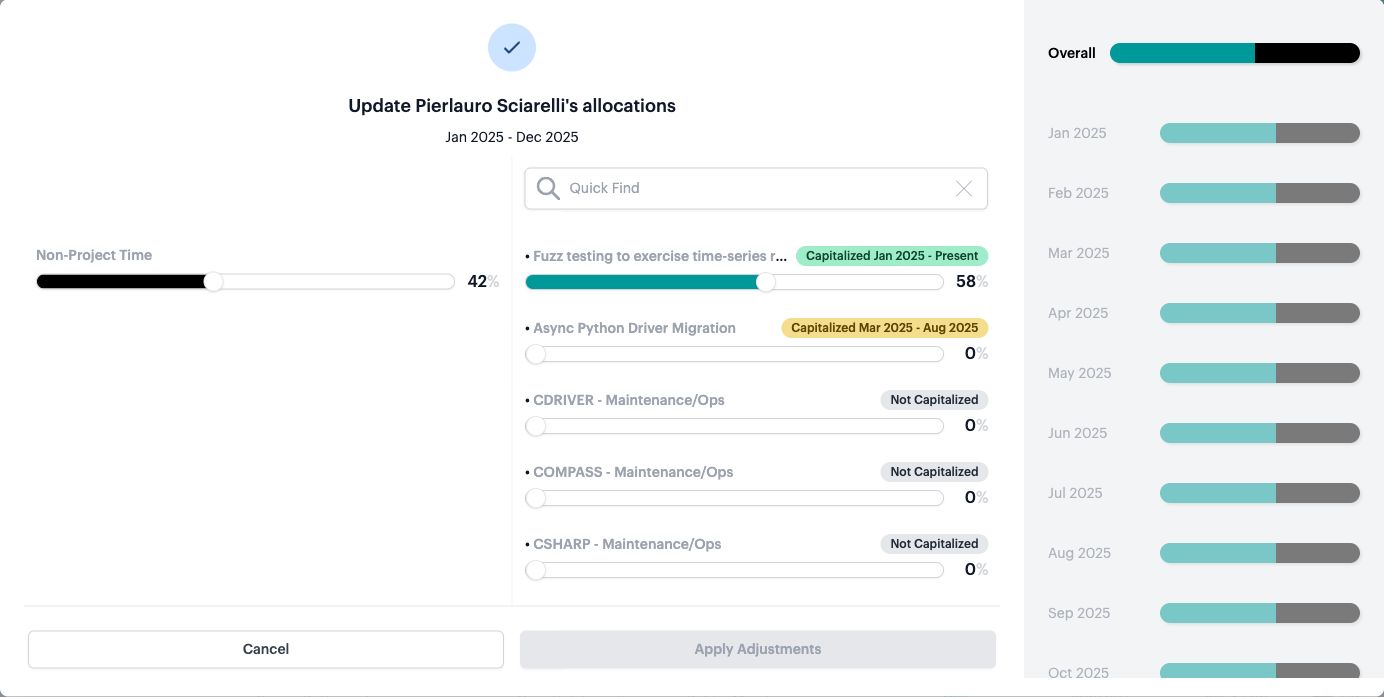
The individual editor shows Non-Project Time, project allocation sliders, capitalization dates, and an overall and monthly breakdown.
Editing allocations in bulk using Excel
- On the ASC 350-40 Cost page, click Edit in Excel.
The Edit in Excel button opens the bulk allocation editor.
- In Bulk Edit ASC Cost and Project Allocations, click here next to “Download the current allocations.”
- Open the downloaded spreadsheet in Excel and set or edit allocations for the people and projects you want to update.
- Save the updated workbook in .xlsx format.
- Return to the same Edit in Excel window. Drag the updated workbook into Upload Your Report, or click the upload area to select it.
- Click Upload.
- After the upload completes, check the affected rows on the cost page and open individual allocations to confirm your changes.
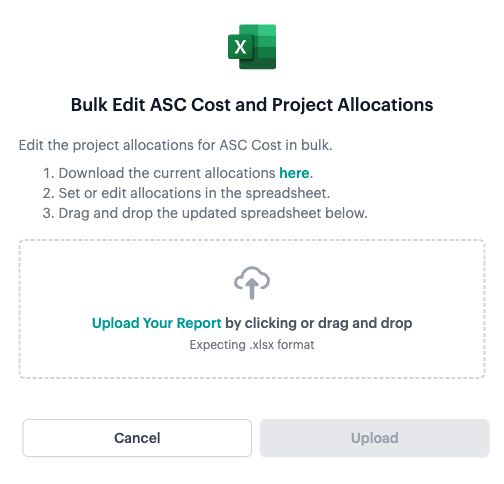
Download the current allocations and upload the edited .xlsx workbook from the same bulk-edit window.
Use Edit in Excel to update existing allocations. The separate Upload ASC 350-40 Cost button is the cost-upload workflow.
Setting a standard capitalization percentage with Set Cap %
Use Set Cap % for senior employees or managers who are not in the ticketing system and need a standard capitalization percentage. Neo.Tax distributes that percentage proportionally across capitalized projects, based on each project’s current share of capitalized time across all employees.
- Select the month you want to update at the top of the page, then open ASC 350-40 Cost.
- Select the checkbox beside each employee who should receive the same percentage.
- Click Set Cap % above the table.

Select the employee rows, then click Set Cap % above the table. This example shows the January view.
- In Set Capitalized % for 1 Expense (or the number of expenses selected), adjust the Capitalized % slider to your target percentage.
- Click Apply, then review the selected employees’ Capitalized % and project allocations.
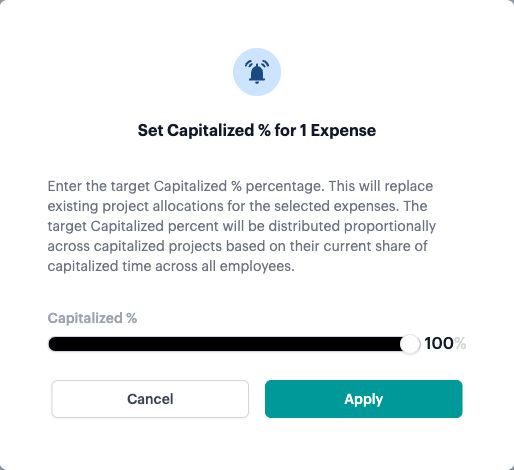
Choose the target percentage in the Set Capitalized % modal.
This action replaces existing project allocations for the selected expenses. The target percentage uses the project mix across all employees, rather than preserving each selected employee’s previous project mix.
FAQs
What does “Non-Project Time” mean?
It represents time that is not allocated to a project. For example, time spent on general administrative activities may belong here when it cannot be assigned to one of your projects.
Why doesn’t the sum of project allocations match “Capitalized %”?
Allocating time to a project does not automatically make all of that time capitalizable. Capitalized % reflects time on projects during their capitalized phase. Review the project’s capitalization dates and any Not Capitalized labels when investigating a difference.
Why can’t I find a project?
Search for it using the modal’s Quick Find field.