
Match projects for ASC 350-40
Project matching lets you bring your existing project list — the projects your team already tracks — and have Neo.Tax automatically assign new engineering work to those projects at each sync.
What is project matching?
Project matching lets you bring your existing project list — the projects your team already tracks — and have Neo.Tax automatically assign new engineering work to those projects at each sync.
Matched tickets land in projects that align with your accounting structure and naming conventions.
If you don’t have a list, NeoTax can generate that for you.
Before each sync: order of operations
- Find your current capitalization project list. You need the list of active capitalizable projects — names and descriptions, plus JIRA/Linear Team names where available.
- Validate the list against the checklist below.
- Upload the list to Neo.Tax (or update your existing list if projects have changed).
- Review the active list in the app and toggle any projects that should be included or excluded from matching.
- Run the sync.
What does a good project list look like?
The quality of your project list directly affects match quality. A strong list has:
- Specific, descriptive names. “Payments API Redesign” matches far better than “Platform Work.” Avoid generic names that could describe multiple initiatives.
- Descriptions on every project. Descriptions help the system distinguish between similar project names. Even a single sentence helps.
- Team names where possible. Including the team name (JIRA Project or Linear team) (e.g., “Frontend”, “ML”, “Backend”) significantly improves matching accuracy by narrowing the scope of which projects to match for each team.
- Only projects you intend to capitalize. Maintenance, KTLO, and operational work should not be on this list — that work will be routed to Maintenance automatically.
- No duplicates. If two entries have the same or very similar names, the system may not be able to distinguish them.
CSV format (for upload):
| Column | Required? | Notes |
|---|---|---|
| Name | Yes | The initiative/project name |
| Description | Recommended | Helps matching; include even a short phrase |
| Teams | Optional | Semicolon-separated if multiple (e.g. Frontend;Design) |
| Launch Date | Optional | Approximate start date of the initiative |
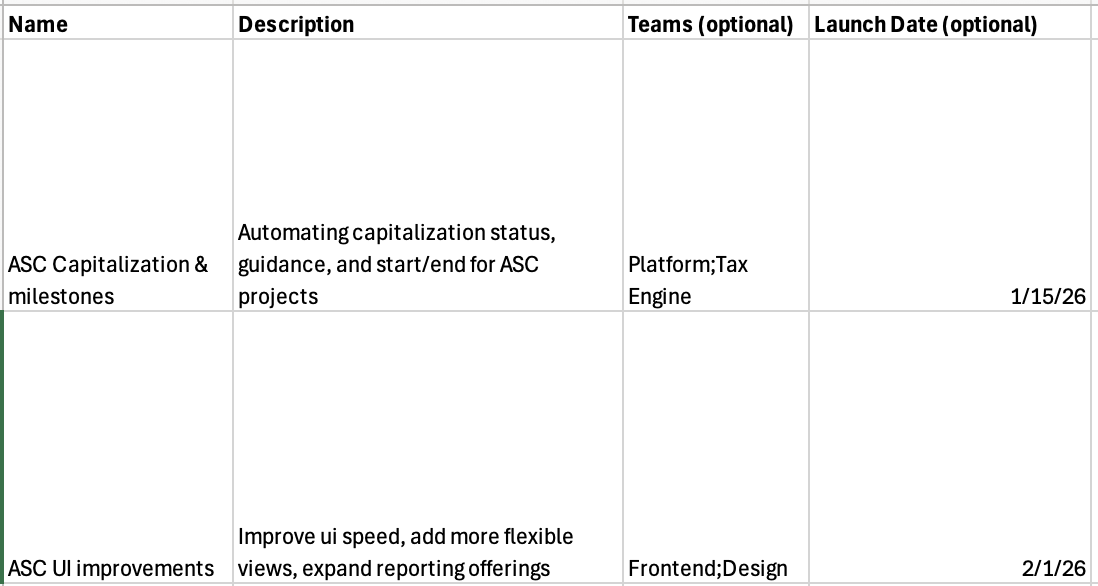
Validating the project list
Before uploading, review for:
-
All active capitalizable initiatives are represented
-
No duplicate or near-duplicate project names
-
Each project has a description (even a short one)
-
Team names are filled in where known
How do I add project(s) for matching?
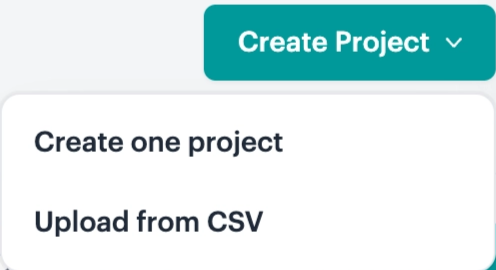
Single project:
- In the Projects view, click Create Project
- Select Create one project
- Fill in the project name, description, team, and optionally a launch date
- The project will be Active for next sync matching by default.
Bulk upload:
- Click Create Project → Upload from CSV
- Upload a CSV with columns:
Name,Description,Teams(optional),Launch Date(optional) - Review the parsed entries and confirm
How do I include or exclude a project from matching?
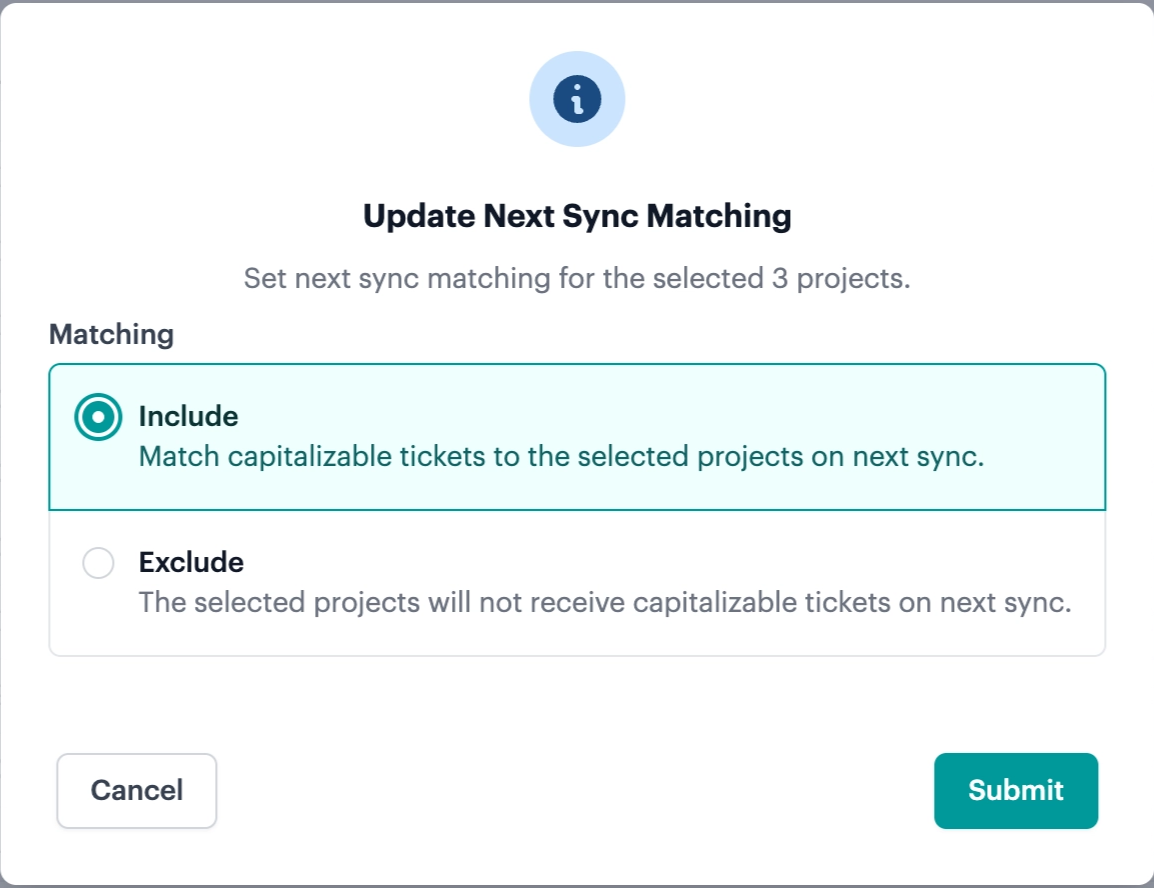
Matching status is controlled per-project by the Next Sync Matching toggle. This determines whether new capitalizable tickets will be matched to a project on the next sync. It has no effect on tickets already assigned to the project.
Single project:
Open the project drawer and toggle Next Sync Matching on or off. The status will show as Active or Inactive.
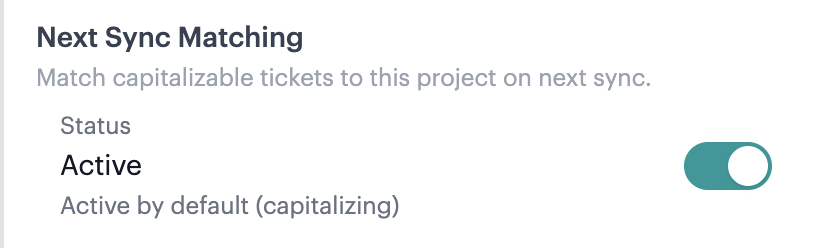
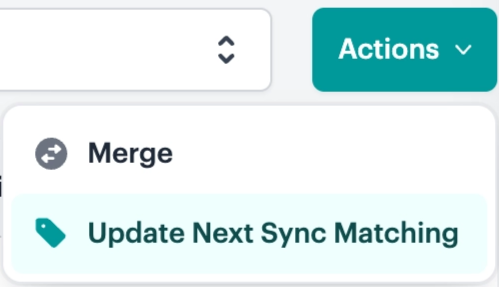
Bulk:
- Select the projects you want to update using the checkboxes
- Click Actions → Update Next Sync Matching
- Choose Include (match capitalizable tickets to these projects) or Exclude (do not match to these projects)
- Click Submit
What is matched?
At each sync, only new Epics and tickets are evaluated for matching.
| Ticket type | What happens |
|---|---|
| Existing tickets | Stay in their current project — not re-matched |
| New Epic | Evaluated against your active project list; matched to the best project, or routed to Misc if no strong match |
| New tickets added to an existing Epic | Placed in the same project as the rest of the ticket group — not re-evaluated |
| Parentless tickets | Evaluated against your active project list |
How does matching work?
When a new ticket group is synced, the system compares its name, description, and team signals against your active project list. It returns:
- The matched project — which initiative the ticket group maps to
- Confidence level — how certain the match is
- Match reasoning — a plain-language explanation of why the match was made
You can view the match reasoning for any project in the Project drawer.
Does the system learn from matches?
Yes. When you move an epic or ticket from one project to another, the system records that correction and uses it to improve future matches for your account. The more corrections you make — especially early on — the better matching gets over time.
During onboarding, your Neo.Tax team will walk through a selected set of matches with you to review and correct them, which sets up the system for more accurate runs going forward.
Still have questions? Reach out to your Neo.Tax contact or email support@neo.tax.