
Ticket inclusion rules and locking
NeoTax evaluates all tickets that have an assignee and have started work, then assigns effort based on the start/completed date and ticket details.
Summary:
NeoTax evaluates all tickets that have an assignee and have started work, then assigns effort based on the start/completed date and ticket details.
Once synced, historical periods are locked to protect your capitalized amounts—only the current period reflects real-time changes from your project management system.
What Tickets Are Included
NeoTax considers all tickets that meet all three of these criteria:
✅ Has an assignee - Someone must be assigned to work on the ticket
✅ Has started - The ticket has moved from “To Do” status to “In Progress”
✅ Is not a root-level ticket - if Epics or Initiatives are configured as your Project level these are excluded to avoid duplication
What “Started” Means
A ticket is considered “started” when it has both an assignee and has moved to an “In Progress” status category:
-
JIRA: We use the Status Category mapping (To Do → In Progress → Completed)
-
Linear: We use the Start Date provided through the API
-
Special cases:
- Tickets that go directly from “To Do” to “Completed” still receive effort based on an estimated start date
What Tickets Are Excluded
❌ No assignee - Unassigned tickets are never included
❌ Never started - Tickets that remain in “To Do” status
❌ Root-level objects - Epics/Initiatives when used as your Project structure
❌ No effort in sync period - Tickets without any calculated effort during the sync timeframe
How Effort Is Calculated and Allocated
Effort Calculation: We estimate effort using our AI model trained on millions of software development tickets, analyzing the title and description.
Effort Allocation: Effort is distributed from the start date until either:
- The ticket is completed, OR
- All calculated effort is “burned down”
This ensures in-progress work receives effort without indefinitely allocating to abandoned tickets.
Examples
Example: Ticket A - Standard Ticket that is Completed
Calculated Effort: 5
Started Date: 2/20/25
Completed Date: 3/5/25
| January | February | March | ||
| Ticket Status | To Do | In Progress | Completed | |
| Effort | 0 | 4 | 1 |
Example: Ticket B - Ticket that is Started But Never Completed
Calculated Effort: 5
Started Date: 2/20/25
Completed Date: none/never completed
| January | February | March | April | May | June | |
| Ticket Status | To Do | In Progress | In Progress | In Progress | In Progress | In Progress |
| Effort | 0 | 4 | 1 | 0 | 0 | 0 |
Data Locking Rules
Prior periods are locked - Once synced, historical ticket data won’t change even if the source system is updated. This protects your capitalized amounts and ensures consistency.
NeoTax will always reflect the project management system as of the sync for that period.
Common scenarios that won’t update past periods:
- Adding/removing assignees to completed tickets
- Moving tickets between projects or epics
- Changing completion dates retroactively
- Bulk status updates
Current period updates - Only the current sync period reflects real-time changes from your project management system.
Locking a period (admin period lock)
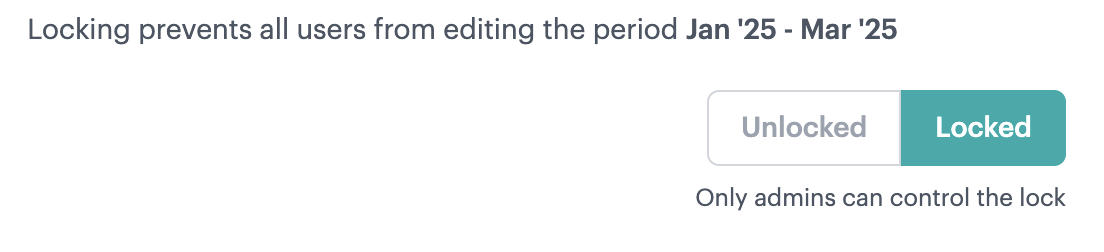
Admins can also lock an accounting period to freeze it while it’s under review or after it’s been finalized. Locking a period prevents everyone at your company from editing it, so your numbers can’t change out from under a review.
This is different from the automatic data locking described above. Automatic locking freezes historical ticket data as it was synced. The period lock is a deliberate action an admin takes to freeze editing of a period.
Why These Rules Matter
These rules ensure that:
- Only actual development work (assigned and started) is captured
- Effort allocation reflects realistic work patterns
- Historical data remains stable for compliance and reporting
- Your capitalization calculations are consistent and auditable
Questions?
If you notice tickets missing from NeoTax that you expect to see, check:
- Does the ticket have an assignee?
- Has it moved to “In Progress” or “Completed” status?
- Did it receive effort in prior months?
When a ticket doesn’t show up in a month, but does show up in prior months, that likely means all the effort for that ticket was allocated already.
For tickets that don’t appear and you’re not able to determine why, contact support and we’ll investigate.
Investigating Missing Tickets
If you notice tickets missing from NeoTax that meet the criteria above, here’s a troubleshooting checklist:
Step 1: Verify in JIRA
- Does the ticket have an assignee?
- What is the ticket’s status category? (Must be In Progress or Done)
- When did it move to In Progress?
Step 2: Check the Sync Timing
- When was the last sync for this period?
- Did the ticket start work before or after the sync?
- Tickets that start work after the sync will appear in the next sync
Step 3: Check for Prior Period Effort
- Was this ticket synced in an earlier period?
- If all effort was allocated in prior months, the ticket won’t show new effort in the current period
- Use the ASC Downloads report to see the ticket’s full history
Step 4: Provide Details to Support
If the ticket still doesn’t appear, contact support with:
- Ticket ID (JIRA key like PROJ-1234)
- Expected period it should appear in
- Ticket’s current status and assignee
- When it was moved to In Progress