
Connect GitHub with a personal access token
Connect GitHub to Neo.Tax with a personal access token.
To connect Github to Neotax, there are two main steps.
You’ll start by creating a personal access token from Github with the necessary permissions. Then you’ll connect that token to NeoTax. The instructions below will guide you through this step by step.
Part 1: Create the Personal Access Token
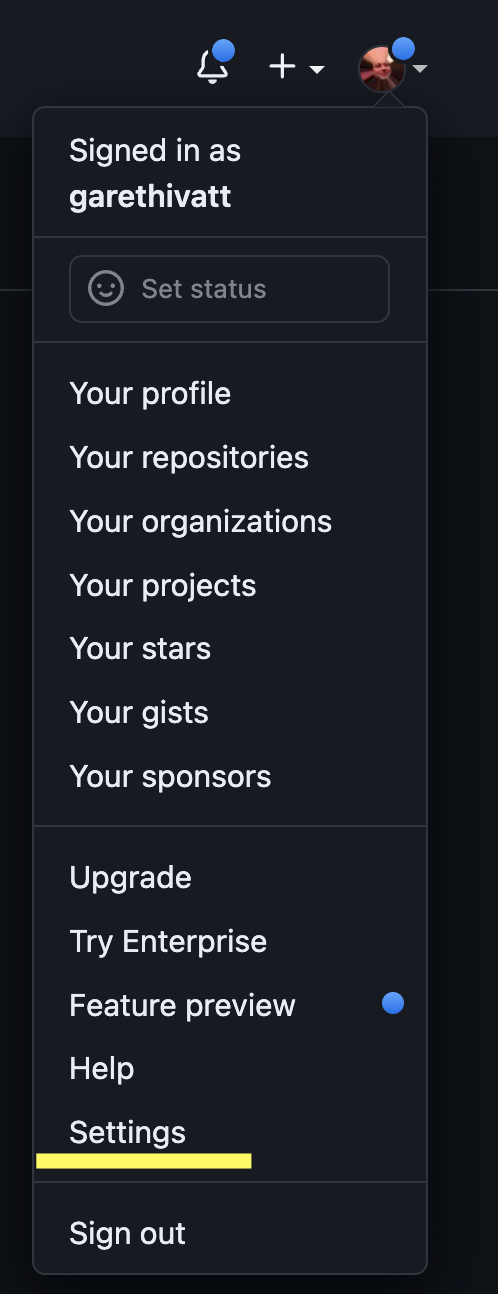
Step 1: In the upper-right corner of any page, click your profile photo, then click Settings.
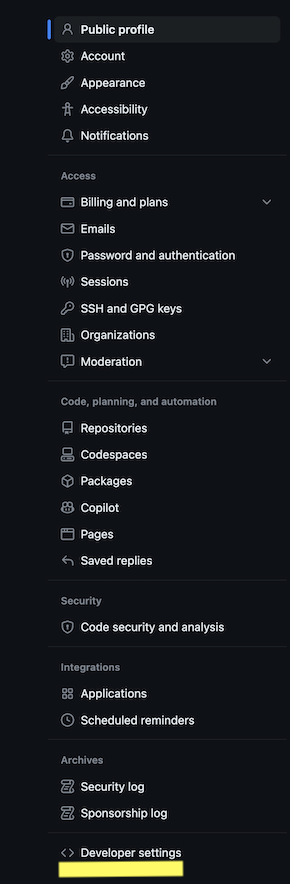
Step 2: In the left sidebar, click Developer settings.
Step 3: In the left sidebar, under Personal access tokens, click Fine-grained tokens. Then click Generate new token at the top right of screen.

Step 4: Configure Token
A. Under Token name, enter a name for the token. You should put a name that helps you remember how this token is being used (ex., neo-tax-integration****).

B. Under Resource owner, change the dropdown to your organization name.
It defaults to your user, so you have to actively change it to the organization.
This is the most common cause of a failed connection. The Resource owner must be your organization, not your personal account. If you leave it set to your user, the connection may look like it succeeded but will silently fail to link your organization — and no data will sync.
Note, below we show neo-tax as an example of an organization. Your organization should have your organization’s name.
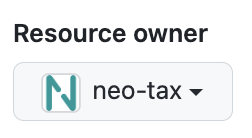
Before proceeding, double check that you have changed the owner to the correct organization.
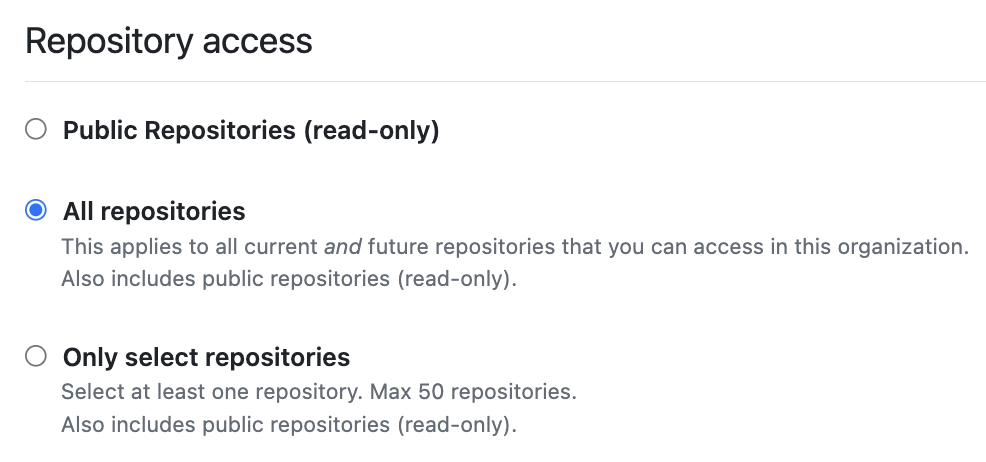
C. Under Repository access, select which repositories you want the token to access. You should choose the minimal repository access needed.
- The simplest solution is to select All repositories.
- If you choose Only select repositories, then select the individual repositories that you want the token to access.
D. Under Permissions, select the following:
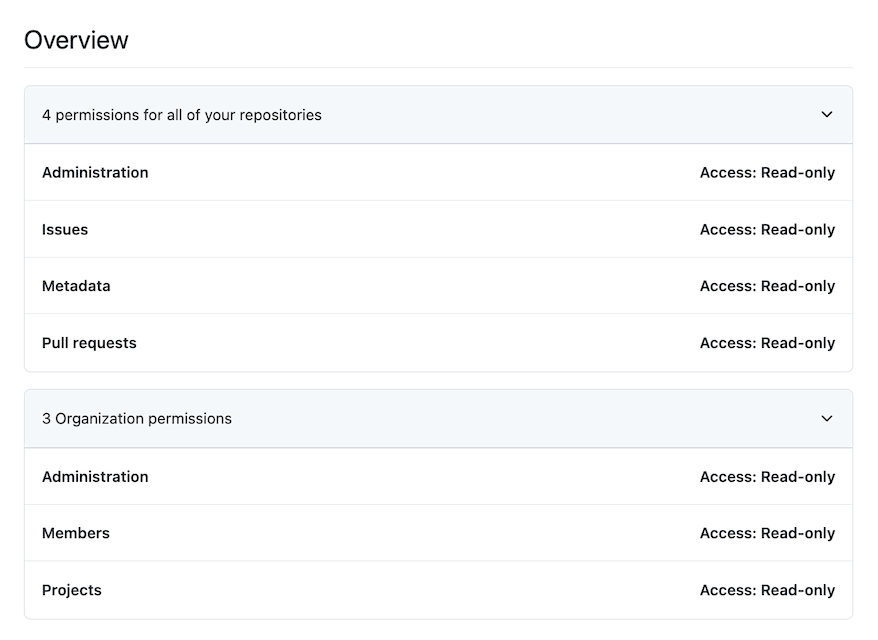
E. If you are NOT an owner/admin of the GitHub organization > confirm the Owner has approved your token.
When a non-admin creates an organization-scoped token, GitHub holds it in a pending state, and the Neo.Tax connection will fail to set your organization until an owner approves it. Do this before starting Part 2.
An organization owner/admin approves the request by:
- Go to “Your Organizations” from the top-right menu
- Select the organization
- In the left-hand menu, under the “Third-party Access” section, select “Pending requests”
- Approve the request
For customers using GitHub Enterprise, the fine-grained PAT may not provide the work emails for all of the users in your GitHub organization. If it does not work, the alternative solution is to link a Classic PAT, using the instructions from this link: https://help.merge.dev/en/articles/8562560-github-how-do-i-link-my-account
Part 2: Connect the token to Neo.Tax
-
Login to https://app.neo.tax
-
Go to the
Projectspage and clickConnect Project Management>GitHub Issues.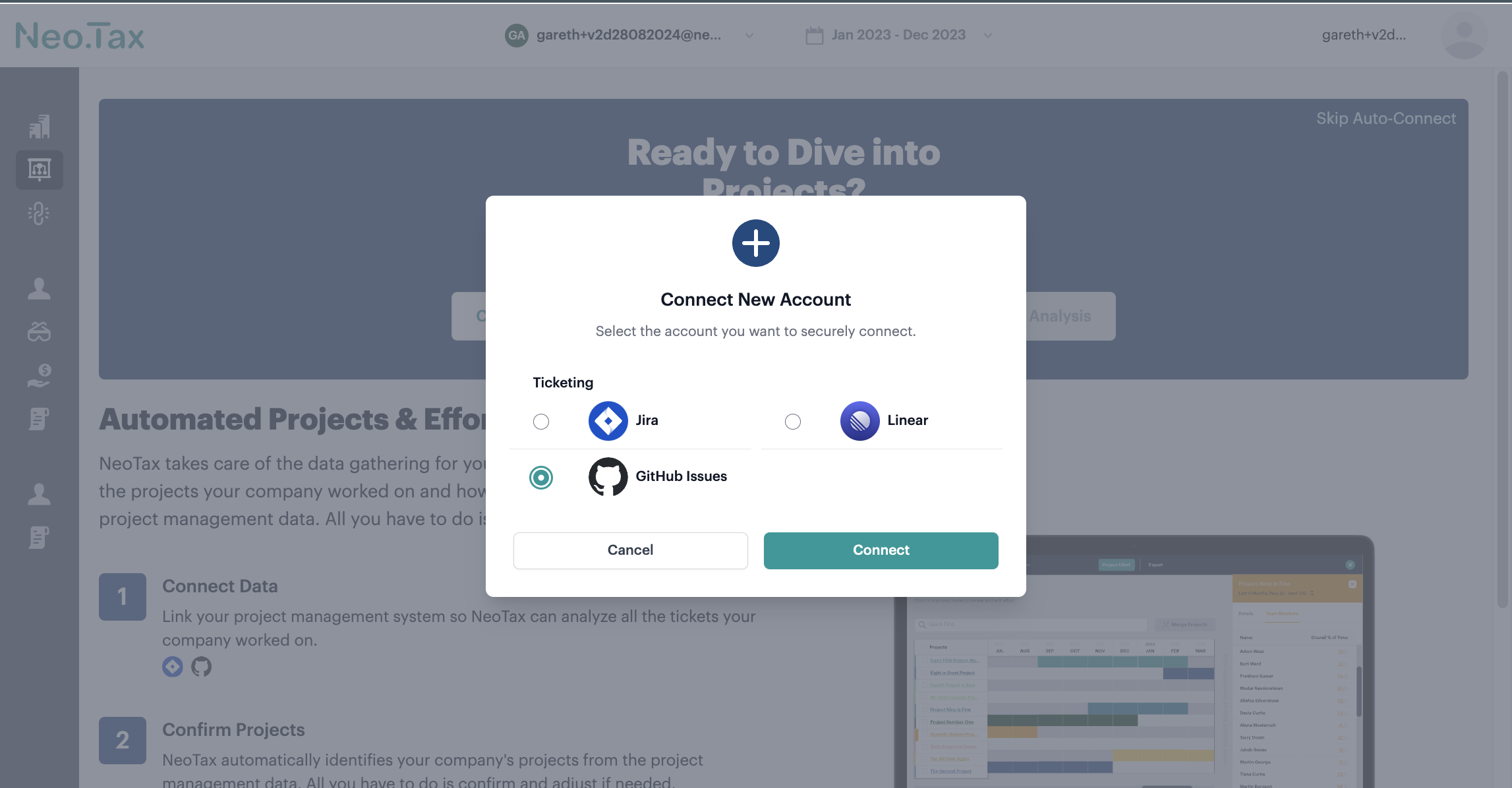
-
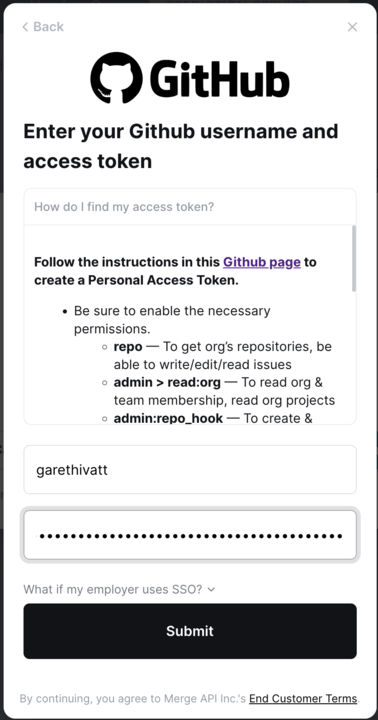
When prompted, enter your personal GitHub username as the
User ID. This only identifies who you are — it does not change what the token can access; the token itself must still be scoped to your organization (Part 1, Step 4B). Then enter the personal access token you created. We use that limited-access token to connect.- Note, the example below shows the a representative GitHub user, you should enter your own
User ID.
- Note, the example below shows the a representative GitHub user, you should enter your own
-
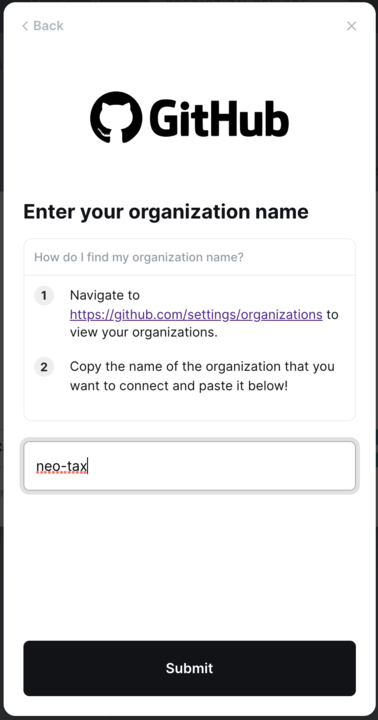
Only then do you enter your Github organization name.
- Note, the example below shows
neo-taxbut you would enter your organizations name.
- Note, the example below shows
Mapping Github to Payroll
To match to payroll data, you’ll then need to create a mapping of GitHub user IDs to Work Emails.
- Create a CSV with GitHub UserId, Work email
- Upload to Neo.Tax > Data Sources > Tax Documents
FAQ
Q: I finished both parts, but nothing is syncing / I was told the organization didn’t get set.
A: This means the token didn’t resolve to a single GitHub organization. Check, in order:
- The token’s Resource owner is your organization, not your personal user (Part 1, Step 4B). This is the most common cause.
- If you are not an org admin, your token request was approved by an owner under Third-party Access → Pending requests (see the Part 1 callout).
- You belong to only one GitHub organization. If you’re a member of several, the connection can’t tell which one to use — contact your Neo.Tax implementation team and we’ll set it manually.
Q: How does Neo.Tax use GitHub data?
A: We use the GitHub pull requests as the primary object. Each pull request is treated as a task or ticket done by a specific person and then grouped intelligently into projects by our AI system. We use the changelog of the pull request to identify when the work was done.
Each repository is treated as a team and we generate projects grouped by repository.
Q: Do I need to use GitHub Issues?
A: No. The system works off of pull requests in GitHub. As long as your team uses pull requests, which nearly all teams do, the data should work.
Q: Does this look at my source code?
A: Absolutely not. Neo.Tax does not need to view source code and does not request it in the above permission set. We only need to see pull requests, the repositories, and the person doing the pull request.
Q: How does this match to my cost data?
A: To match to cost data, you’ll provide a mapping between Github user id and Employee work email.
Q: Can I use both GitHub and JIRA with Neo.Tax**?**
A: Yes, you can integrate both systems, though we don’t typically recommend this as a starting approach. The most effective use case for dual integration is when different teams within your organization use different systems exclusively—for example, if your development team works primarily in GitHub while your project management team relies on JIRA.
We recommend beginning with your most comprehensive or widely-used system first, then evaluating any coverage gaps before adding the second integration. This approach helps avoid unnecessary complexity and duplication while ensuring all teams have access to Neo.Tax functionality within their preferred workflow.
Your implementation team will work with you to determine the optimal integration strategy based on your specific team structure and usage patterns.