
Set up SAML login
Before beginning the setup process with Neo.Tax, ensure your Identity Provider is properly configured.
Step 1: Prepare Your SAML Identity Provider (IdP)
Before beginning the setup process with Neo.Tax, ensure your Identity Provider is properly configured. You’ll need the following information from your provider:
-
Log in to your SAML Identity Provider (e.g., Okta, Azure AD, OneLogin).
-
Create a new SAML application for Neo.Tax in your IdP.
-
Note down the following information from your IdP:
- Entity ID (Issuer)
- Single Sign-On (SSO) URL
- X.509 Certificate
Step 2: Contact Neo.Tax Support
Reach out to Neo.Tax Support (support@neo.tax) to initiate the SAML setup process:
-
Send an email with the subject line “[Company Name]: SAML Setup Request”.
-
In your email, also include:
-
Your desired Provider ID (you’ll enter this into Neo.Tax whenever you log in)
- e.g.,
saml.[company-name]
- e.g.,
-
The Entity ID (Issuer) from your IdP
-
The SSO URL from your IdP
-
The X.509 Certificate file from your IdP
- This should be shared securely using https://us.onetimesecret.com/.
-
Step 3: Configure Neo.Tax as a Service Provider (SP)
Neo.Tax Support will configure the SAML settings on our end and provide you with the following information:
- Neo.Tax Entity ID (Service Provider) URL
- Assertion Consumer Service (ACS) URL
Step 4: Complete IdP Configuration
Return to your Identity Provider and finalize the SAML app configuration:
-
Enter the Neo.Tax Entity ID and ACS URL provided by Neo.Tax support into your IdP’s SAML app settings.
-
Configure attribute mappings in your IdP:
- Ensure that the Subject
NameIDFormat is set to capture the user’s email address. For example, specifying this in XML would like:
<Subject>
  <NameID Format="urn:oasis:names:tc:SAML:1.1:nameid-format:emailAddress">test@email.com</NameID>
</Subject>
Your IdP may have other ways of configuring this, but you’ll most likely need to specify the format
urn:oasis:names:tc:SAML:1.1:nameid-format:emailAddresssomewhere in your configuration. - Ensure that the Subject
Step 5: Test the SAML Configuration
Once the setup is complete, it’s crucial to test that the SAML login is behaving correctly:
-
Attempt to log in to Neo.Tax using your IdP’s SAML application by going to https://app.neo.tax/enterprise-sso, selecting the
SAMLoption, and inputting your Provider ID.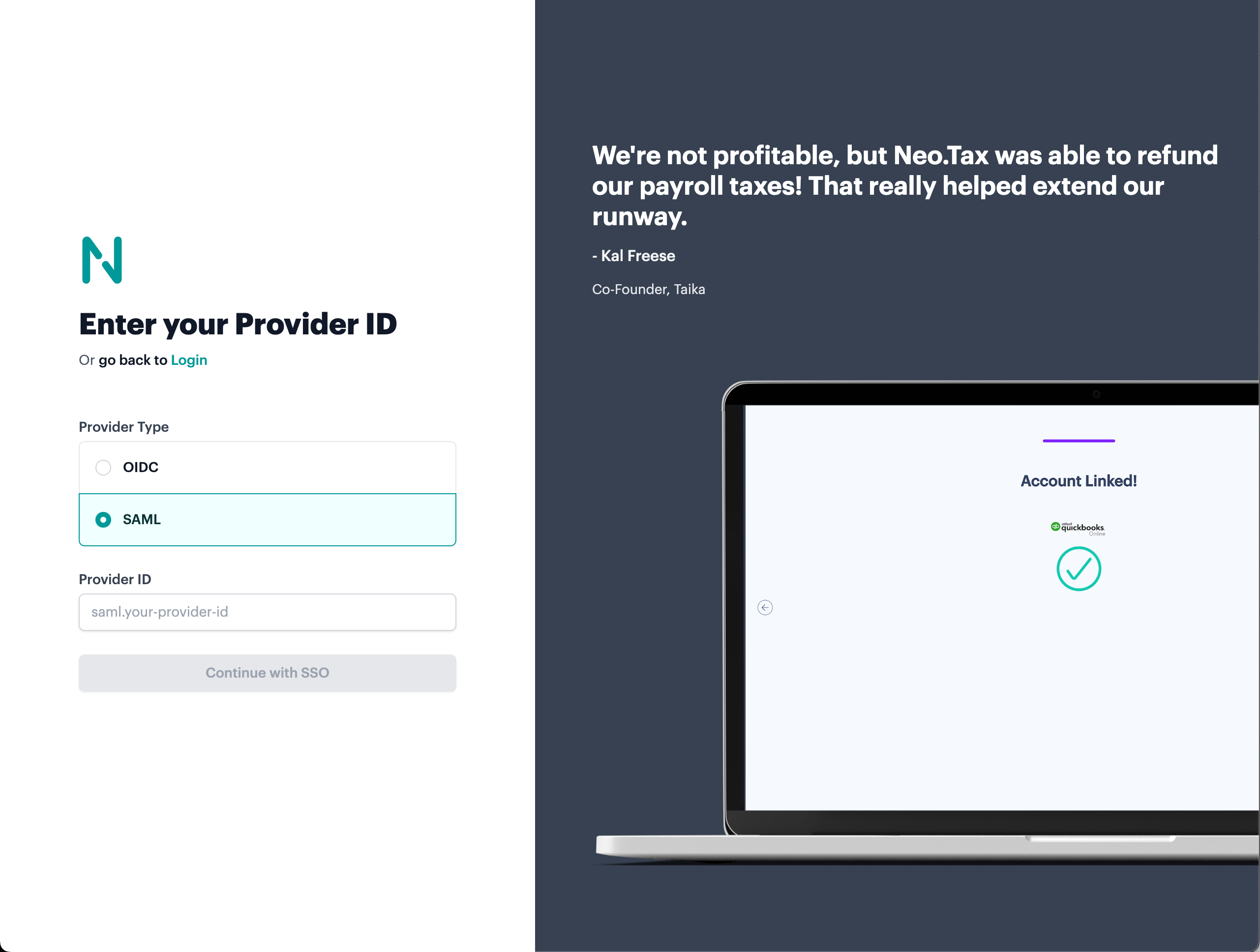
-
Verify that you can successfully authenticate and access your Neo.Tax account.
Step 6: Roll Out to Your Team
After successful testing, you can begin using SAML authentication for your organization:
- Inform your team about the new SAML login option.
- Provide instructions on how to access Neo.Tax through your Identity Provider.
- Inform us if you want to restrict your team to log in only through SAML (i.e., prevent alternative login methods like email/password)
Coming soon: SCIM user provisioning!
For any issues or questions during the setup process, don’t hesitate to contact Neo.Tax Support. We’re here to ensure a smooth and secure authentication experience for your team.