
Connect Jira
Connect Jira Cloud to Neo.Tax over OAuth, using a user that can read the projects you want analyzed.
-
For JIRA, first set up a user with the required permissions.
- Most companies use a Service Account Admin for this. The API token inherits the permissions of the user account. If you want to exclude some JIRA Projects that is completely irrelevant to R&D/ASC 350 you can do that at User level.
Step A: Create a Dedicated Group
- Go to admin.atlassian.com → Directory → Groups
- Create a new group (e.g.,
neo-tax-integration) - Add the user who will generate the API token to this group
- Ensure the group has Product Access → “User” role for Jira
Step B: Confirm the user is an app admin
In Atlassian: make sure to set as an app admin. Some companies may need to do this depending on your setup.
Step C: Configure Permission Scheme (for ticket/project data)
- In Jira: Settings (⚙) → Work items → Permission Schemes
- Edit your scheme (or create a new one)
- Grant Browse Projects permission to your neo-tax group
- Apply this scheme to the projects you want to sync
Step D: Configure Global Permissions (for user/team data)
- In Jira: Settings (⚙) → System → Global Permissions
- Grant Browse users and groups to your neo-tax group
-
Now, we’ll link via OAuth in Neo.Tax**.**
-
Confirm you are logged into the correct JIRA account in the browser before proceeding. This user account is the one that will be used for the linking.
-
Go to app.neo.tax, login, and and navigate to “Projects” page.
-
Click “Connect Project Management”
-
Select ticketing provider
-
Connect ticketing by following the directions in the modal
-
Select JIRA:
-
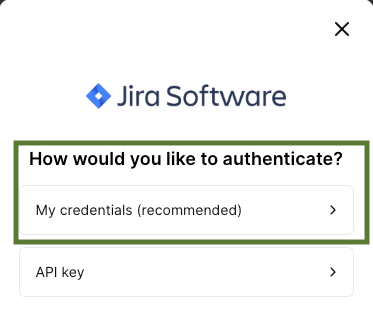
Select “My Credentials”.
-
Click “Next”
-
Enter your JIRA instance url.
-
You’ll then be prompted to login to JIRA and a model will open to authorize NeoTax.
-
Click Accept on this screen:
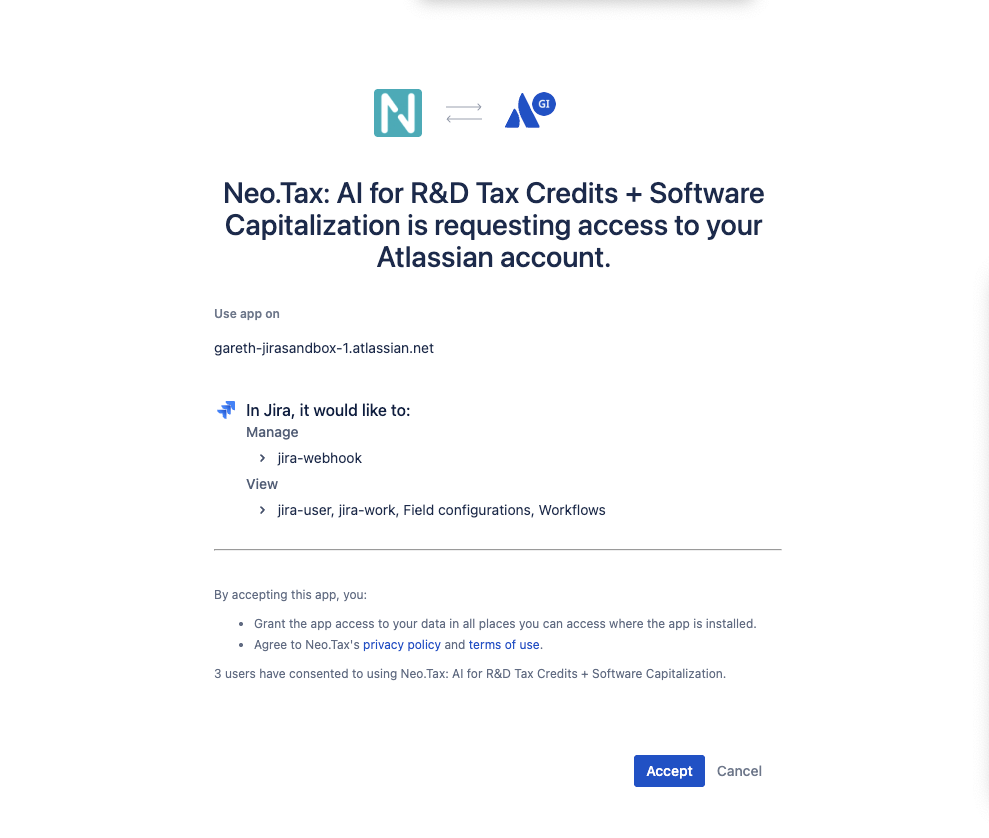
- Once you see the success message, click done and that’s it.
-
-
-
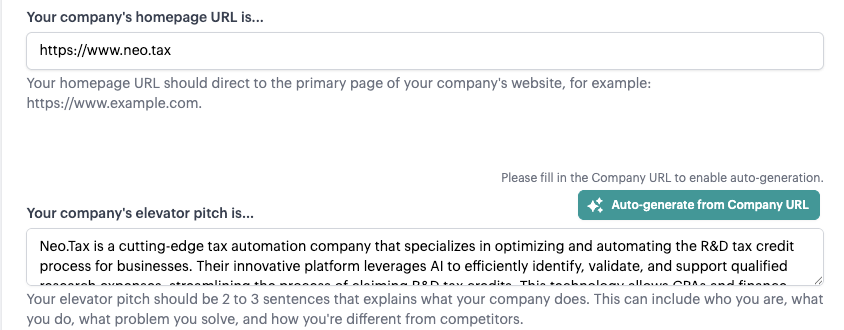
Fill out “Company Information > Homepage URL” then to Company Elevator Pitch and click Auto-Generate Company URL.
-
Click “Start Analysis”
- Note: Projects can take a few hours to a week to generate depending on the amount of data. We will send you an email when your projects are ready
FAQs
What data and permissions does the JIRA integration request?
The JIRA integration gives Neo.Tax read-only access to fields for these objects and fields.
| Tickets | Users | Project |
| Summary Description Assignee Name Assignee ID Issue ID Key Issue Type Completed Timestamp Creator Creator ID Due Date Name Parent Ticket Parent Link Priority Project Project ID Remote Created Timestamp Remote Updated Timestamp Labels Resolution Resolved Status Status Category Status Category Changed Ticket URL Updated | Email Address Is Active Name User ID | Name Identifier |
Does my JIRA need to be set up in a particular way to be used with Neo.Tax**?
** No - Neo.Tax is built to ingest any JIRA setup, no matter how messy. The integration ingests ticket level data, then enriches that with any available hierarchy data like Projects, Epics, etc. Then Neo.Tax organizes the data into higher-level groupings using AI.
What version of JIRA do I need?
Neo.Tax supports all versions of JIRA Cloud.
JIRA Data Center is also supported. During implementation, please confirm the version of the database schema you are using.
How do I connect JIRA Data Center?
You can connect this via API token, by setting up a personal access token then going to the connect page access to all the required projects.
I’m seeing an error about authenticating 3rd party cookies, but I have enabled cookies.
Try using Chrome instead of Safari.