
Connect GitHub with the GitHub App
To connect GitHub to Neo.Tax, you will install the Neo.Tax GitHub App on your GitHub organization. It takes about a minute and does not require a personal access token.
You’ll need to be a GitHub organization admin—or have an admin approve the installation. The steps below walk you through it.
After connecting, upload a CSV mapping GitHub user IDs to work emails, so the data from GitHub can be mapped to payroll later.
Part 1: Connect GitHub
-
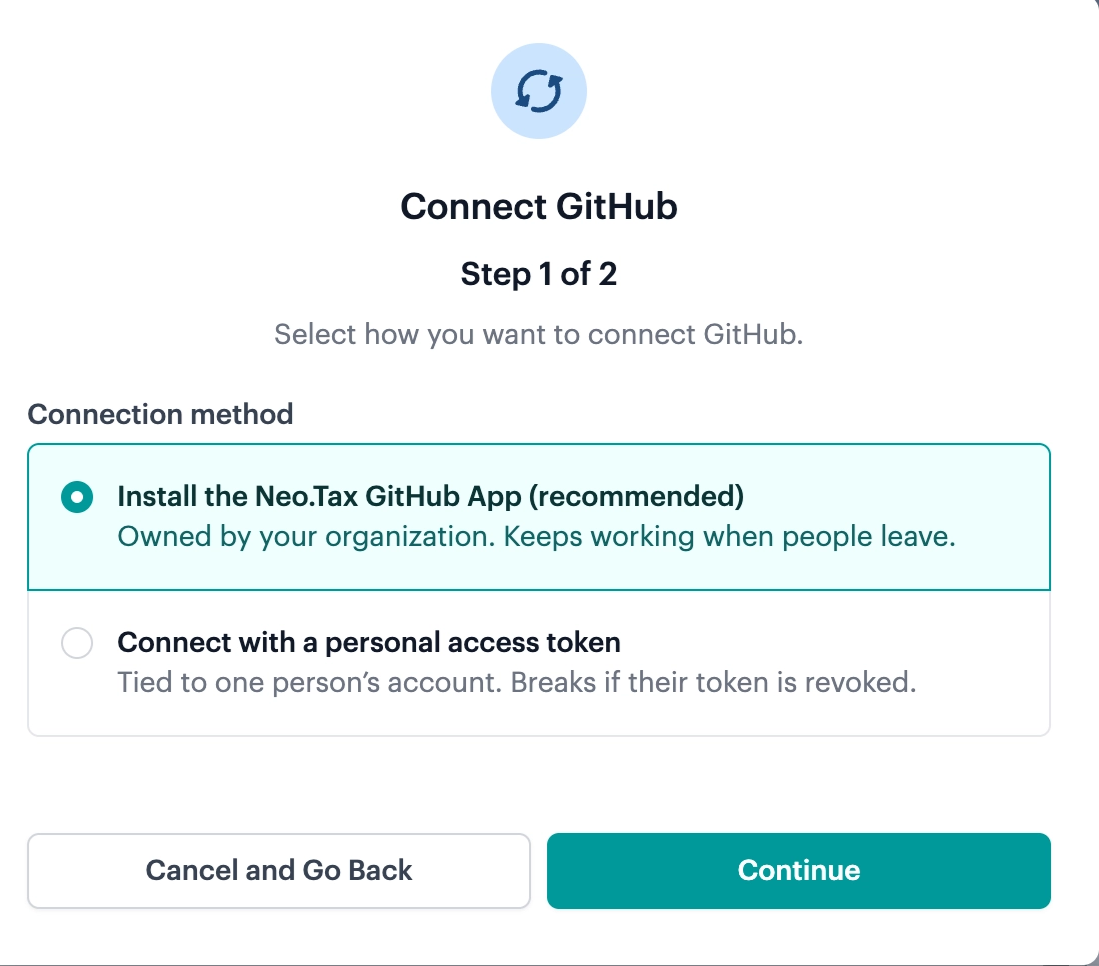
Log in to app.neo.tax and go to Projects → Connect Project Management → select Install the Neo.Tax GitHub App
-
Enter your GitHub organization (for example,
acme-inc).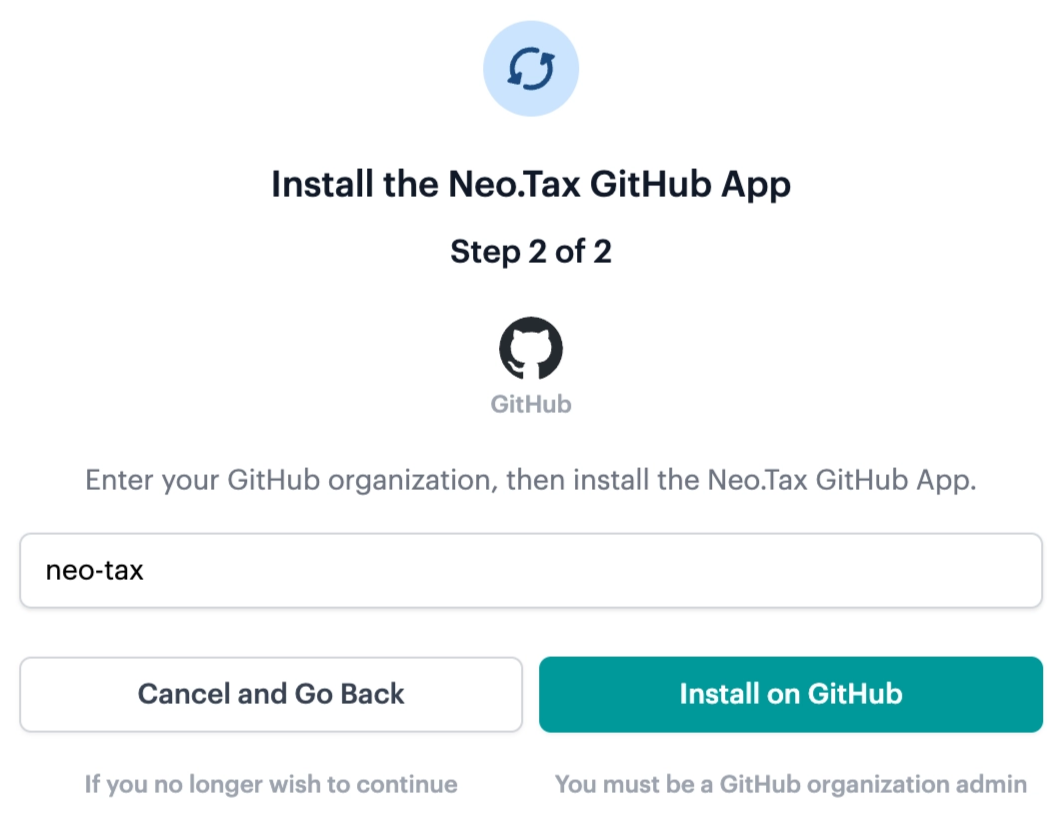
-
Click Install on GitHub. You’ll be taken to GitHub to install the Neo.Tax GitHub App on your organization.
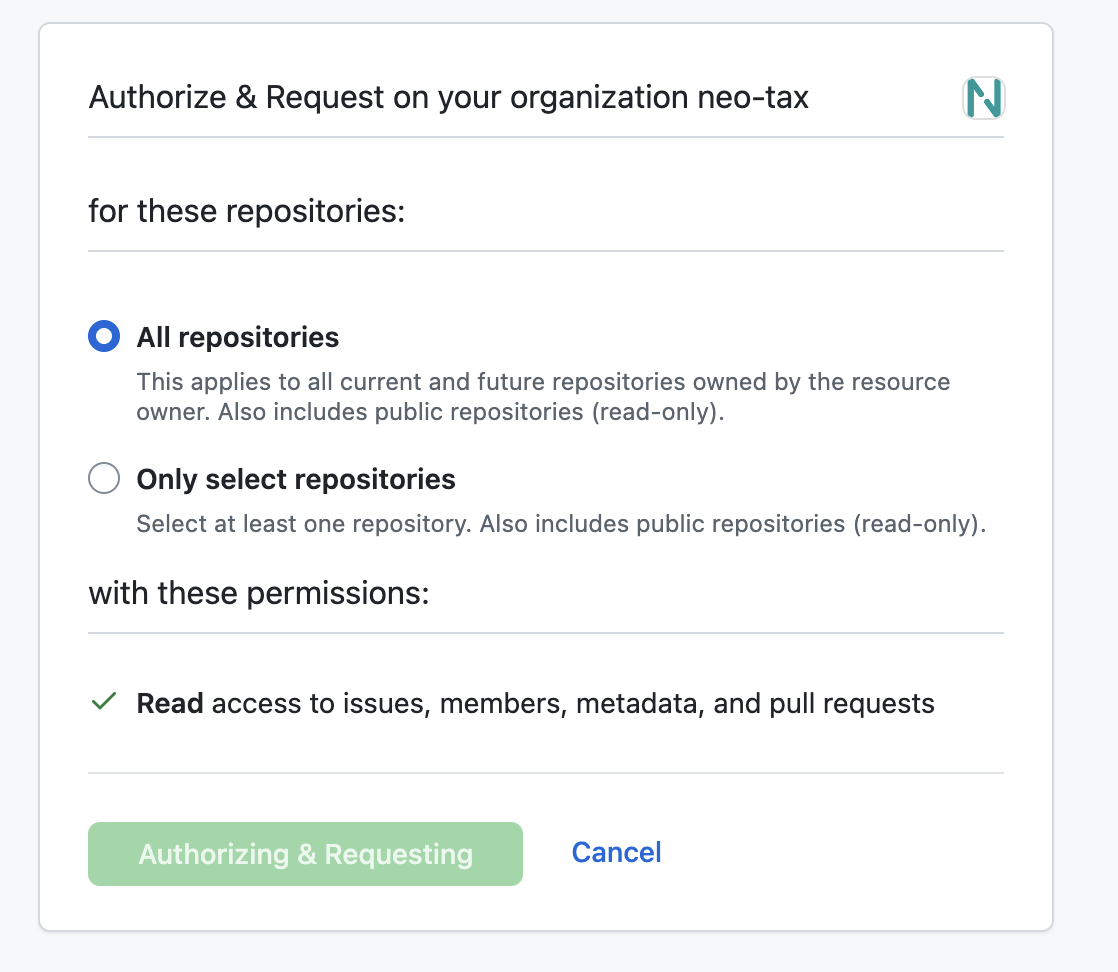
- Confirm you have the correct organization selected. If you are owner of multiple organizations, you may need to select the correct one.
-
Select All Repositories (recommended).
- If you have certain repositories that you want to exclude, please discuss with Neo.Tax. We will only be able to identify R&D for the repositories we are given access to.
-
Click Authorize & Request. You’ll be returned to Neo.Tax, which confirms the connection automatically—you’ll see “GitHub App Installed—GitHub is connected.”
You must be a GitHub organization admin to install the app. If you’re not, see below.
If you’re not a GitHub organization admin, there’s 1 more step
When you start the installation, GitHub sends an approval request to an owner of your GitHub organization, and Neo.Tax shows “Waiting on Your GitHub Admin.”
Once an owner approves the request, come back to Neo.Tax and connect GitHub again to finish. Approval on its own doesn’t complete the connection.
Troubleshooting
If GitHub shows a configuration page instead of an install screen, this means the Neo.Tax GitHub App is already installed on your organization. Uninstall it from your GitHub organization’s Settings → Installed GitHub Apps. Then retry the installation process from the Neo.Tax app.
Part 2: Mapping GitHub to payroll
To match GitHub activity to your payroll data, upload a mapping of GitHub user IDs to work emails:
- Create a CSV with two columns: GitHub UserId and Work email.
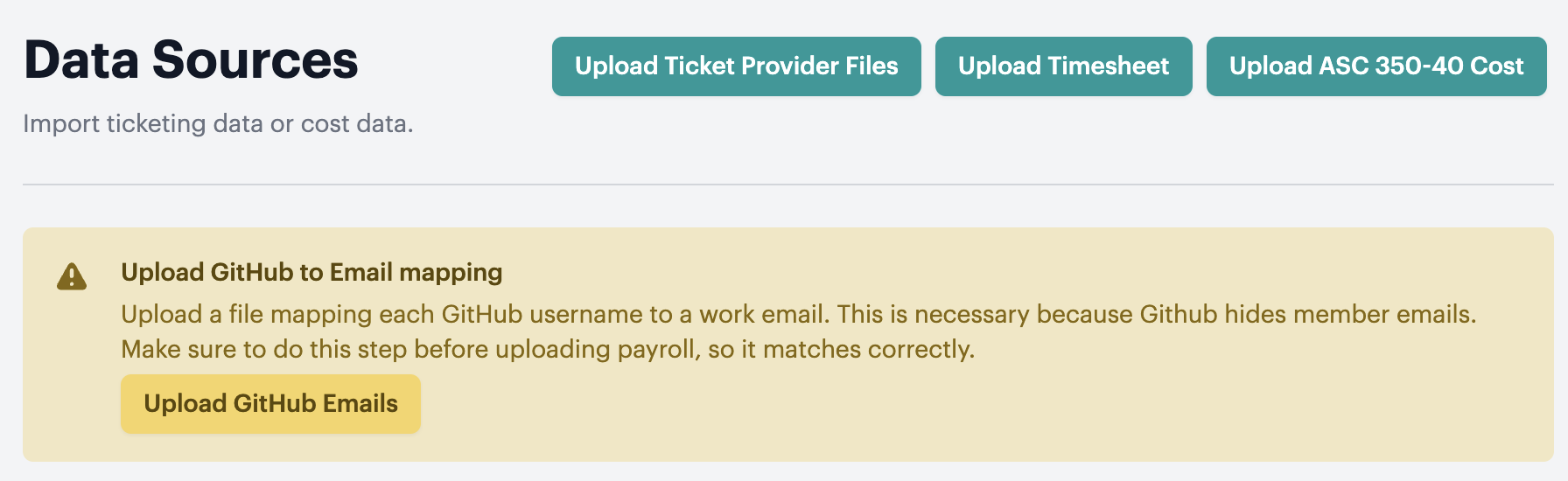
- Go to Neo.Tax → Data Sources → Select Upload Github Emails
FAQ
Q: Does Neo.Tax look at my source code?
A: No. The Neo.Tax GitHub App requests only read access to pull requests and repository metadata—never your source code.
Q: How does Neo.Tax use GitHub data?
A: We use pull requests as the primary signal. Each pull request is treated as a task done by a specific person, and our AI groups them into projects. Each repository is treated as a team, and we generate projects grouped by repository.
Q: Do I need to use GitHub Issues?
A: No. The system works off pull requests. As long as your team uses pull requests—which nearly all teams do—your data will work.
Q: How does this match to my cost data?
A: You provide a mapping between GitHub user ID and employee work email (see Mapping GitHub to payroll above).
Q: Can I use both GitHub and JIRA with Neo.Tax**?**
A: Yes. This works best when different teams use different systems—for example, engineering in GitHub and project management in JIRA. We usually recommend starting with your most widely used system first, then adding the second if there are coverage gaps. Your implementation team will help you decide.
Q: I have a single tenant set up. Does that change anything
A: Yes, we will create a separate Github app for your single tenant. We’ll walk you through this during the onboarding.