# Export tickets from Jira
If your organization uses JIRA and cannot connect via API, you can export the data from JIRA and upload it to the Data Sources page in Neo.Tax.
If your organization uses JIRA and cannot connect via API, you can export the data from JIRA and upload it to the Data Sources page in Neo.Tax.
Follow the steps below to export **1) the Tickets file** and **2) the Users** **file** from JIRA, and then upload both to NeoTax.
#### Step 1: Exporting JIRA Tickets
1. **Log into JIRA**
1. **Go to Filters >** ***All Issues.***
1. **Note: If you have JIRA Data Center,** while you can export from the UI, this can require a lot of chunking to return all the issues as the UI doesn’t offer an easy to export all at once. The alternative is to query the Rest API directly. [See details below](/help-center/ticketing/jira-export)
1. **Filter for all tickets during the relevant period.**
1. Filter the dates by *6 months before* *through the end* of period to capture all work that started or completed during the period.
1. Tax Year 2025 example:
1.
```javascript
(
updated >= "2024-07-01" AND updated < "2026-01-01"
)
OR
(
resolved >= "2025-01-01" AND resolved < "2026-01-01"
)
```
1. *Optional: Filter by specific Projects if you want to exclude completely irrelevant Projects from nonR&D teams.*
1. Example: ` updated >= "2024-07-01" AND updated < "2026-01-01" AND Project != "Website 3.0"`
```javascript
(
updated >= "2024-07-01" AND updated < "2026-01-01"
)
OR
(
resolved >= "2025-01-01" AND resolved < "2026-01-01"
) AND Project != "Website 3.0"
```
1. Make sure all possibly relevant *Projects* are included before proceeding.
1. **Click Configure Columns > then Select the following fields:**
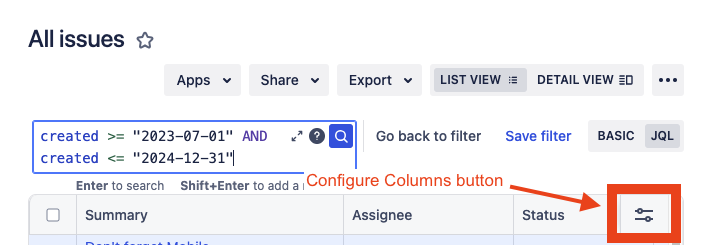
- *Summary* (required)
- *Description* (required)
- *Issue ID* *(required if it exists)*
- *Key* (required)
- *Issue Type* (required)
- *Assignee* (required)
- *Assignee ID (optional - include if available)*
- *Creator* (required)
- Creator ID (include if available)
- *Priority* (required)
- *Project* (required)
- *Project ID* (optional - include if available)
- *Project Name (*sometimes doesn’t exist)
- *Epic Name* (required)
- *Epic Link (*sometimes doesn’t exist)
- *Parent* (required if it exists)
- *Parent ID (required if it exists)*
- *Parent Link (*sometimes doesn’t exist)
- *Labels*
- *Status*
- *Created* (required)
- *Resolution* (required)
- *Resolved* (required)
- *Updated* (required)
- *Status Category (required)*
- *Status Category Changed* (required)
- *Story point estimate (*sometimes doesn’t exist)
- *Story Points (*sometimes doesn’t exist)
1. **Click Apps > Open in Excel.**
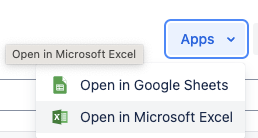
1. If this is the first time, you’ll need to authorize the Excel add-on.
1. If you get a message asking for a verification code, try enabling popups for [Atlassian.net](http://atlassian.net/) in the browser, then try clicking Export > Excel again. That should open a series of screens to accept and authorize the Excel add-on.
1. **Double check the Export file contains** ***all*** **the tickets from the period.**
1. If you used Open in Google Sheets, the rows sometimes are limited to 5,000.
1. If you’re unable to get all tickets in 1 export, use the date filters to chunk the export up into multiple files.
1. **Review the file(s) and confirm the following:**
1. The name of the sheet is “Your Jira Issues” - case sensitive.
1. *Key* column is present and filled out for all rows.
1. *Resolution* column is present and filled out for some rows.
1. There are no duplicate column names.
#### Step 2: Export JIRA Users List
1. Go to [https://admin.atlassian.com](https://admin.atlassian.com/)
1. Go to Directory > Export Users
1. Select “All Users” or Click …
1. Users> All users in the organization
1. User status> All users
1. Then Export
1. Download CSV which will be sent to your email
1. Confirm it has required fields:
1. `User id`
1. `User name`
1. `email`
1. `User Status`
If you use JIRA Data Center:
1. Run a query to get the userid, email address, display name, status for all users
1. Ex: `select key, user_name, email_address, active from cwd_user`
1. Exact field names may vary. The JIRA admin should identify the exact field names for their instance.
1. More [info here:](https://support.atlassian.com/jira/kb/how-to-extract-jira-user-data-from-database-tables/)
1. Confirm the result has all required fields:
1. `User id`
1. `User name`
1. `email`
1. `User Status`
#### Step 3: Upload Tickets and Users Files to Neo.Tax
1. First, go to Company Information and fill in the Elevator Pitch. This is necessary to analyze the tickets
1. Click “Upload Ticket Provider Files” on the Data Sources page in Neo.Tax
1. Type in “JIRA” in the ticketing provider text box
1. Upload the tickets file(s) and user file.
1. Let NeoTax know you’re ready for the data to be processed.
### FAQs
1. **Question:** Are all the columns required when exporting tickets for a successful upload to Neo.Tax?
**Answer:** Ensure you have all the required columns list above and all other columns available in your JIRA instance to ensure the best quality generated projects.
1. **Question:** I can’t find the export ticket view in JIRA
**Answer:** This is likely because you are not an Admin on JIRA. Try adjusting your permission level and then repeating the steps again.
1. **Question**: Can I limit which projects are exported to NeoTax?
**Answer:** Yes! Create filter by project to include/exclude Projects in the export.
Make sure this project list includes all potentially relevant projects.
1. **Question: I use JIRA Data Center and want to do this using Rest API query.**
**Answer:** Yes, you can retrieve this using API, which makes it easier than chunking in the UI.
Sample requests to retrieve all issues for the 2025 tax year, including the 6 months before. These may require some modification for your setup.
```sql
GET /rest/api/2/search?jql=(updated >= "2024-07-01" AND updated < "2026-01-01") OR (resolved >= "2025-01-01" AND resolved < "2026-01-01")
```
You likely will need to chunk this using `&startAt` and `&maxResults=` and cycle through the complete list.
For columns, the easiest approach is to return all fields using `&fields=*all`
```sql
GET /rest/api/2/search?jql=(updated >= "2024-07-01" AND updated < "2026-01-01") OR (resolved >= "2025-01-01" AND resolved < "2026-01-01")&fields=*all&expand=names
```
Or you can specify the fields indicated above. Not all of the fields may be used in your instance or you may have used a custom fields for some of these.
```sql
GET /rest/api/2/search?jql=updated >= "2024-07-01" AND updated < "2026-01-01"&fields=summary,description,id,key,issuetype,assignee,creator,priority,project,parent,labels,status,created,resolution,resolutiondate,updated,statuscategorychangeddate&expand=names
```
Verify that the results have each of the required fields specified above, if it exists.
[How to Export Other Systems](/help-center/ticketing/export-other-systems)